
Breaking News

Wi-Fi news from NetAlly

As a network engineer, you’re always looking to optimize network performance and provide the best user experience possible. One of the key metrics you need to understand and manage is network latency. High latency can wreck video calls, slow down critical business applications, and frustrate users.

In this post, we’ll explain what network latency is, what causes it, how to check it, and most importantly – how you can reduce it and keep your network running smoothly.

What is Network Latency?

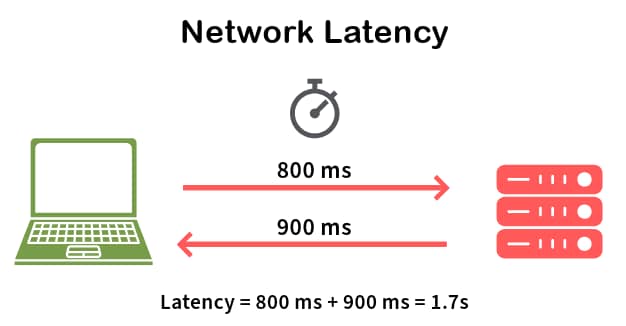
Network latency is the time it takes for data to travel from its source to its destination across a network. Think of it like measuring how long it takes a car to drive between two cities – the journey time is the latency. Understanding the network latency meaning is fundamental to optimizing network performance.

Latency is typically measured in milliseconds (ms), with good latency being under 50ms for most applications. The network latency definition describes this as round-trip time (RTT) – the time it takes for a request to reach its destination and return with a response. High latency in computer networks creates delays and unresponsiveness. Low latency? Things feel snappy and responsive.

What’s the difference between ping and latency? Ping is the tool used to measure latency. Latency is the actual time delay itself – ping measures it, latency is what you’re measuring.

As more companies rely on cloud-based applications and real-time IoT data, latency creates inefficiencies that directly impact productivity. High latency reduces the benefits of expensive high-bandwidth infrastructure, affecting user experience and customer satisfaction.

What Causes High Network Latency?

Understanding what causes high latency helps you diagnose issues faster. Network latency causes range from physical infrastructure to software inefficiencies.

  1. Distance: Physical distance is a major factor. A website in Trenton, NJ responds to Farmingdale, NY users (100 miles) in 10-15 milliseconds, while Denver users (1,800 miles) face 50 milliseconds. Light travels through fiber at 4.9 microseconds per kilometer.
  2. Number of network hops and hardware: Multiple routers, switches, firewalls, and load balancers increase hops and latency. Each hop adds processing time for routing table lookups and packet forwarding, especially with outdated equipment.
  3. Network congestion and data volume: When high data volume clogs the network, it’s like a four-lane highway merging into a single lane. Devices have limited processing capacity, worsening during peak usage on shared infrastructure.
  4. Server performance: Sometimes what appears to be network latency is actually slow server response time. Servers taking too long to process requests create delays that seem like network issues.
  5. Transmission medium: Fiber optic cables have lower latency than copper, which has lower latency than wireless. Each medium switch adds milliseconds to transmission time.
  6. End-user issues and storage delays: Devices low on memory or CPU resources create perceived latency. Storage delays accessing data packets cause holdups at intermediate devices like switches and bridges.
  7. Website construction: Heavy content, large images, or multiple third-party resources cause congestion as browsers download larger files.

Pro Tip:

When troubleshooting latency, isolate whether the issue is network-related or server-related. Use ping tests to measure pure network latency, then compare with full application response times.

What is Good Network Latency?

What’s a good network latency? It depends on your application, but understanding network latency benchmarks helps you set the right expectations. Is 30ms latency good? Yes – 30ms falls in the optimal range for most applications.

Latency Range Performance Level Impact on Applications
Under 20ms Excellent No noticeable delay; ideal for all applications including competitive gaming
20-50ms Good Minimal delay; optimal for VoIP, video conferencing, and business use
50-100ms Acceptable Slight delay noticeable in real-time apps; fine for web browsing
100-150ms Fair Noticeable delay; VoIP quality degrades, gaming becomes difficult
Over 150ms Poor Significant delays; real-time applications severely impacted

Application-Specific Requirements:

  • VoIP and video conferencing: 20ms optimal, 150ms acceptable, 300ms+ unacceptable.
  • Online gaming: Under 50ms for competitive play. Over 100ms degrades experience.
  • Web browsing: Under 100ms is optimal. 200-300ms is acceptable.
  • Real-time applications: Streaming analytics and online auctions require the lowest latency because lag can have financial consequences.

What is normal Wi-Fi latency? Wi-Fi typically sees 2-20ms under good conditions, compared to 1-10ms for wired Ethernet. Wi-Fi latency can spike higher with interference.

Professional Network Standards: Enterprise environments should target under 50ms for critical business applications. Industries like telemedicine, financial services, and telerobotics require under 20ms because delays can have serious operational or safety consequences.

How to Test Network Latency

Knowing how to test network latency is essential for maintaining optimal performance. Regular network latency checks help you spot issues before they impact users.

Ping Tests: The most common network latency test uses the ping command. Type ping google.com in Command Prompt (Windows) or Terminal (Mac/Linux). The ping command sends ICMP echo request packets measuring the time for 32 bytes of data to reach its destination and return. Results show “time=15ms” – that’s your latency.

Traceroute: Shows latency at each network node. Use tracert google.com (Windows) or traceroute google.com (Mac/Linux) to identify which hops are problematic.

Online Speed Test Tools: Websites like Speedtest.net, Orb.net, and Cloudflare’s speed test provide quick network latency checks with bandwidth measurements. While convenient, they only test to specific servers and may not reflect latency to your actual business applications.

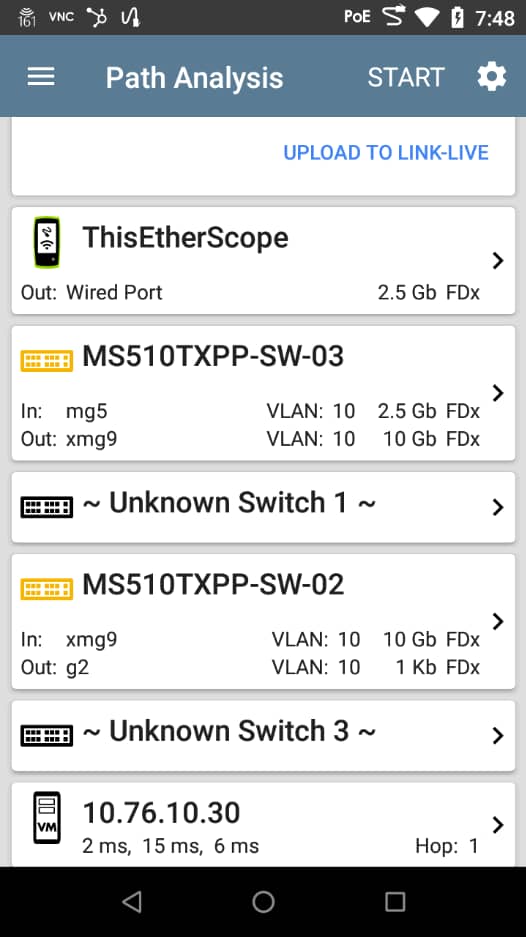
Path Analysis: The EtherScope nXG provides Path Analysis, identifying overloaded interfaces, device resources, and interface errors across your network infrastructure.

Key Measurement Metrics:

  • Round Trip Time (RTT): Complete time for data to travel from source to destination and back. RTT compounds when multiple requests are needed and is affected by both network latency and processing time.
  • Time to First Byte (TTFB): Time from when a client sends a request until the first byte of the server response arrives. TTFB measures both server processing time and network latency.

Continuous Monitoring Best Practices:

  • Deploy monitoring tools that track latency continuously
  • Set baseline expectations based on historical data
  • Configure alerts when latency exceeds thresholds (typically 20-30% above baseline)
  • Monitor at multiple network points to identify trends before they impact users

Network Latency vs Bandwidth vs Throughput

Understanding network latency vs speed is crucial for optimization. Many confuse latency vs bandwidth, but they measure different things.

Is latency more important than Bandwidth? It depends. Latency matters most for real-time applications like VoIP and gaming. Bandwidth matters most for large file transfers and streaming.

Does increasing bandwidth reduce latency? No. You can have a 1Gbps connection with terrible latency if the network has issues.

Metric Definition Measured In Highway Analogy
Latency Time delay for data to travel Milliseconds (ms) How fast cars travel
Bandwidth Maximum data capacity Mbps or Gbps Maximum number of cars in a highway
Throughput Actual data successfully transmitted Mbps or Gbps Cars reaching destination

When Each Matters Most:

  • Latency: VoIP, video conferencing, gaming, financial trading – applications where delays are immediately noticeable
  • Bandwidth: Video streaming, file downloads, backups, multiple users – applications moving large data volumes
  • Throughput: Overall network efficiency and real-world performance

Low latency with low bandwidth means data arrives quickly but not much can travel – throughput will be low. High bandwidth with high latency means lots of data flows but arrives slowly. The ideal network has both high bandwidth AND low latency for high throughput. Latency can reduce ROI in expensive high-bandwidth infrastructure.

How to Reduce Network Latency

Learning how to reduce and improve network latency requires different approaches for end users versus network professionals.

User-Side Fixes:

Switch to Ethernet for 1-10ms latency versus Wi-Fi’s 2-20ms. Check that others aren’t using excessive bandwidth. Close unnecessary background applications. Optimize DNS by switching to faster servers like Google DNS (8.8.8.8) or Cloudflare DNS (1.1.1.1) to reduce lookup delays. Update router firmware or replace outdated equipment.

Professional Network Optimization:

Use a CDN: Content Delivery Networks cache content on servers close to end users, delivering data from nearby servers instead of distant origins.

Optimize code and content: Streamline application code and database queries. Compress images using WebP and implement lazy loading. Load above-the-fold content first. Enable gzip or Brotli compression.

Upgrade infrastructure: Deploy higher-performance routers and switches. Upgrade to fiber optic connections for lower latency than copper.

Implement QoS: Prioritize time-sensitive traffic like VoIP or video conferencing to keep latency low during congestion.

Reduce distance and hops: Host servers geographically closer to end users. Use cloud solutions and direct connections instead of routing through the public internet. Implement subnetting to group endpoints that frequently communicate.

Optimize traffic management: Use load balancers to distribute traffic and prevent bottlenecks. Configure network buffers to match traffic patterns and avoid bufferbloat.

Pro Tip:

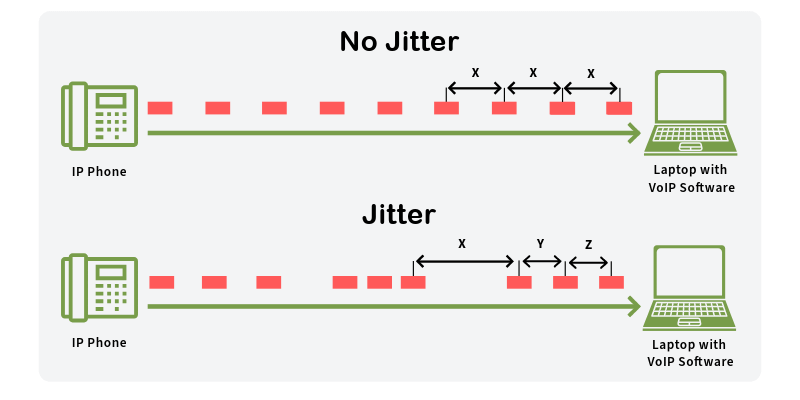
Don’t just focus on reducing latency – aim for consistent latency. Variable latency (jitter) is often worse for user experience than slightly higher but consistent latency.

Network Latency Troubleshooting Guide

How do I fix my network latency? Follow this systematic network latency troubleshooting approach:

Common Symptoms and Their Causes:

  • Slow page loads: High RTT, server issues, or DNS problems
  • Choppy VoIP/video: Latency over 150ms, jitter, or packet loss
  • Application timeouts: Excessive hops or congestion
  • Intermittent slowdowns: Peak usage or failing hardware

Step-by-Step Diagnostic Process:

  1. Establish baseline – Run ping and traceroute. Compare against historical baseline.
  2. Isolate the problem – Test pure network latency with ping, then compare with application response times.
  3. Check local devices – Disconnect devices one at a time. Verify adequate memory and CPU.
  4. Test wired vs wireless – Switch from Wi-Fi to Ethernet. If latency improves, wireless interference is the culprit.
  5. Analyze network path – Use traceroute to identify high-latency segments. The EtherScope nXG delivers detailed Path Analysis to quickly pinpoint latency sources.
  6. Check for congestion – Monitor bandwidth utilization for capacity issues.
  7. Review QoS – Verify policies are properly configured.
  8. Escalate when necessary – If issues persist after checking local infrastructure or appear on external traceroute hops, contact your ISP. Otherwise, resolve internally with hardware upgrades, configuration optimization, or QoS implementation.

VoIP and Real-Time Application Latency

Real-time applications require a low latency network to function properly. Understanding VoIP latency requirements is critical for maintaining call quality.

Latency Standards:

  • VoIP: 20ms is optimal, up to 150ms is acceptable, above 300ms is unacceptable
  • Video Conferencing: Target under 100ms for smooth calls
  • Enterprise/Professional: Target under 50ms for professional-grade communication
  • Critical Industries: Telemedicine, financial services, and telerobotics require under 20ms to avoid operational or safety consequences

Impact on Call Quality: High VoIP latency degrades audio and video quality with choppy audio, frozen video, and conversation delays. Combined with jitter and packet loss, it makes real-time communication nearly impossible.

QoS Implementation: Configure QoS policies specifically for VoIP and video traffic. These applications need guaranteed bandwidth and priority routing to maintain low latency during congestion. Mark voice and video packets for priority handling at every network hop.

The CyberScope Air validates wireless performance for VoIP deployments, ensuring your Wi-Fi network meets latency requirements for critical real-time applications.

Wi-Fi vs Ethernet Latency Differences

Does using Wi-Fi increase latency? Yes. Understanding Wi-Fi latency differences helps you make informed infrastructure decisions.

Will an Ethernet cable improve latency? Absolutely. Ethernet provides 1-10ms latency on local networks. Wi-Fi typically sees 2-20ms under good conditions but can spike much higher.

Why Wired Has Lower Latency: Ethernet provides dedicated pathways without interference. Data travels at consistent speeds without competing for airtime. Fiber-optic and Ethernet have less latency than wireless networks.

Wi-Fi Factors Increasing Latency:

  • Radio interference from other networks and devices
  • Distance from access point requiring retransmissions
  • Multiple devices sharing channels
  • Protocol overhead and collision avoidance
  • Channel switching

Wi-Fi 7 improves latency by introducing technologies like Multi-link Operations (MLO), but still can’t match wired performance.

When to Choose Each:

Ethernet: Latency-sensitive applications (VoIP, video conferencing, gaming), fixed devices, network infrastructure, high-bandwidth applications.

Wi-Fi: Mobile devices, impractical cabling areas, guest access, non-critical applications tolerating variable latency.

The AirCheck G3 conducts site surveys to identify Wi-Fi interference sources and optimize wireless performance.

Advanced Network Optimization for Professionals

Network professionals can implement advanced techniques to minimize latency and maximize performance.

Buffer Optimization and Network Tuning:

Configure buffers to match traffic patterns. Too-small buffers cause packet drops. Too-large buffers create bufferbloat that increases latency.

Best Practice: For 1Gbps links, use buffer sizes around 100-250ms of bandwidth (12-30 MB). For 10 Gbps links, use 5-10 ms (6-12 MB) to prevent buffer bloat. Monitor queue depths and adjust based on packet loss vs latency.

Advanced QoS Configuration:
Implement multi-tier QoS policies:

  • Priority 1: VoIP and video – guarantee 30% bandwidth, max 50ms latency
  • Priority 2: Business-critical apps – guarantee 40% bandwidth
  • Priority 3: General traffic – 20% bandwidth
  • Priority 4: Bulk transfers – 10% bandwidth, deprioritize during peaks

Use traffic shaping with weighted fair queuing or strict priority scheduling for time-sensitive traffic.

Monitoring and Alerting Setup:

Implement continuous monitoring to measure latency across multiple points. Establish baseline latency over 2-4 weeks. Configure alerts at 20-30% above baseline (warning) and 50% above (critical). Monitor both average and 95th percentile latency. Track to multiple destinations and correlate with bandwidth utilization and error rates.

Integration with NetAlly‘s Professional Testing Tools:

The EtherScope nXG combines Ethernet testing, Wi-Fi diagnostics, and performance validation with line-rate packet capture up to 10Gbps.

The LinkRunner 10G validates Multi-Gig and 10G connectivity, performs TruePower PoE testing, and conducts LANBERT Media Qualification to ensure cable plants support required speeds.

These tools help resolve latency issues faster by combining diagnostic functions and uploading results to Link-Live for team collaboration.
Ever had your wireless network choke when 30 executives connect simultaneously during a board meeting? Or watched clients stubbornly cling to a congested 2.4 GHz band instead of switching to your pristine 6 GHz spectrum?

These frustrations stem from a fundamental Wi-Fi limitation: devices could only connect to one frequency band at a time. Even with 2.4 GHz band, 5 GHz band, and 6 GHz band spectrum available, clients had to pick just one.

Multi-Link Operation (MLO) changes everything. This core feature included in the IEEE 802.11be (Wi-Fi 7) standard allows a single device to simultaneously send and receive data across different frequency bands and channels to a single access point. Instead of choosing between bands, devices can now use them together through simultaneous connections.

This fundamental shift from traditional single-link Wi-Fi delivers higher throughput, lower latency, and improved reliability. For network engineers, MLO solves connection problems we’ve battled for decades.

How Does Multi-Link Operation Boost Your Network’s Speed and Reliability?

MLO delivers multiple benefits for network performance:

  • Higher Throughput Through Link Aggregation – MLO combines bandwidth from multiple bands rather than forcing devices to use just one. Testing shows this can potentially double throughput for compatible clients, boosting performance.
  • Lower Latency Via Link Selection – MLO automatically routes time-sensitive packets like VoIP over the fastest path. This happens instantly without dropping connections.
  • Improved Reliability Through Link Redundancy – If one link experiences interference, traffic automatically shifts to other available links without dropping the connection. This keeps devices connected even when RF conditions change suddenly.
  • Connection Stability in Congested Networks – MLO distributes traffic across multiple bands, reducing interference impact on any single connection. This maintains better performance even when individual bands experience heavy usage.

MLO vs. Traditional Single-Link Operation

Feature Single Link Operation (all legacy versions of Wi-FI) Multi-Link Operation (Wi-Fi 7)
Bands Use Simultaneously 1 2 (2.4/5/6 GHz)
Maximum Throughput Limited by one band Aggregated across bands
Latency Higher, prone to congestion Lower, less congestion
Reliability Susceptible to interference Stable, dynamic switching
Suitability for Dense Environments Limited Excellent

Pro Tip:

While MLO helps mitigate interference, proper channel planning remains essential.
Co-channel interference is still a concern, especially in the 2.4 GHz band.

What Are the Different Types of Multi-Link Operation Modes?

MLO operates in several modes designed for different device capabilities and use cases.

Multi-Link Single Radio (MLSR)

MLSR uses one radio that switches between multiple bands.

Benefits:

  • Dynamic band switching with one radio
  • Lower power consumption
  • AP Support is optional

Enhanced Multi-Link Single Radio (eMLSR)

eMLSR uses one radio that switches between multiple bands but can listen on multiple bands while transmitting on one.

Benefits:

  • Dynamic band switching with one radio
  • Lower power consumption
  • Compatible with most client devices
  • Supported by all APs

Multi-Link Multi-Radio (MLMR)

MLMR uses multiple dedicated radios for simultaneous operation across bands.

Benefits:

  • True parallel transmission
  • High throughput
  • Higher power consumption
  • AP Support is optional (not commonly supported)

STR (Simultaneous Transmit and Receive) Mode

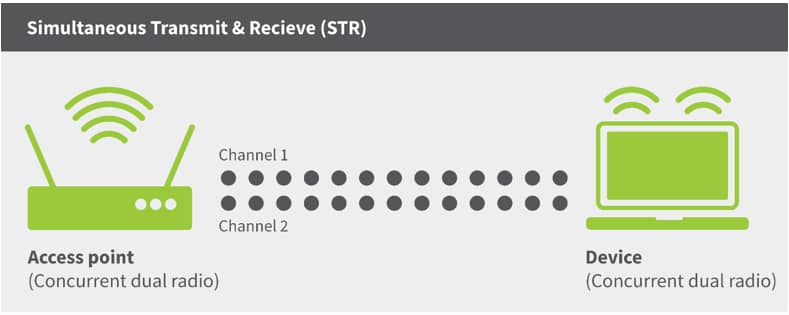
STR allows transmitting on one band while receiving on another simultaneously.

Benefits:

  • Lower latency
  • Most noticeable gains in throughput and latency
  • Supported by all APs
  • Higher power consumption

When to Use Each Mode

  • MLSR: Most simple version of MLO, good for mobile devices with a single radio and only one antenna
  • eMLSR: Best for mobile devices, IoT endpoints, and battery-powered equipment that need efficiency
  • MLMR: Great for devices that require higher throughput, but works best on low utilization and interference environments
  • STR: Ideal for access points, high-performance laptops, and fixed equipment that prioritize speed and low latency

ML Operation Modes

Mode Name Simultaneous Use Frequency Flexibility Typical Hardware Requirement Key Benefit
STR Yes High Multi-radio Maximum throughput, low latency
eMLSR Yes (dynamic) Very High Single radio Efficient setup, dynamic switching
MLSR Yes (dynamic) High Single radio Dynamic switching
MLMR Yes (static) Low Multi-radio High Throughput

Pro Tip:

Most client devices will use eMLSR mode due to power and cost constraints. Plan your network to optimize for eMLSR performance while supporting STR capabilities in access points.

Which Applications Benefit Most from Multi-Link Operation?

MLO delivers the biggest performance improvements for applications requiring high bandwidth, low latency, or both:

VR/AR Applications and Wireless VR Headsets

VR/AR gaming needs massive bandwidth and instant response times. MLO sends control signals over the fastest connection while streaming visuals through high-capacity links, preventing the motion sickness caused by delayed visual feedback.

Cloud Gaming and Online Gaming

Cloud gaming depends on consistent, low-latency connections for smooth gameplay. MLO sends gaming data through the clearest channels while background downloads use separate links, stopping lag spikes at crucial moments.

8K Video Streaming

8K video streaming requires more bandwidth than single connections can reliably provide. MLO combines capacity from multiple bands, delivering smooth playback without constant buffering interruptions.

Video Conferencing and Virtual Collaborations

Video conferencing requires stable connections for clear communication. MLO’s backup links prevent interference from disrupting calls by automatically switching traffic to cleaner frequencies when needed.

Emerging Metaverse Applications

Metaverse platforms need both VR/AR performance and support for multiple users interacting simultaneously. MLO delivers the combined bandwidth and low latency routing these complex environments demand.

Real-Time Latency-Sensitive Applications

Industrial control systems, financial trading platforms, and medical monitoring equipment need instant data transmission with reliable backup options. MLO routes critical information through optimal paths while maintaining redundant connections for safety.

Application Bandwidth and Latency Requirements

Application Bandwidth Required Latency Class MLO Benefit
VR/AR Headsets 25+ Mbps Real-time (L2) High bandwidth + ultra-low latency
Gaming >4 Mbps Real-time (L2) Consistent low latency
8K Video Streaming 100 Mbps Real-time (L2) High bandwidth aggregation
Video Conferencing 1 Mbps Real-time (L2) Connection reliability
VoIP <0.5 Mbps Real-time (L2) Ultra-reliable, low latency
Industrial Control <0.5 Mbps Non-real time (L1) Ultra-reliable connections

Test your network’s readiness for these applications and validate that your infrastructure can support next-generation wireless demands.

What Do You Need to Implement Multi-Link Operation?

Implementing MLO requires specific hardware and careful planning across your network infrastructure.

Hardware Requirements

MLO needs hardware specifically designed for Wi-Fi 7 (802.11be). Unlike previous Wi-Fi improvements, MLO requires fundamental architectural changes to both access points and client devices rather than simple firmware updates.

Compatible Devices and Access Points

Both access points and client devices must support Wi-Fi 7 and MLO.

Firmware Version Requirements

All devices need current firmware to properly negotiate MLO connections. WLAN controllers also require software updates to support MLO configuration and management features.

Network Configuration Considerations

Key planning factors include:

  • Spectrum availability: Some versions of MLO work best with clean spectrum across multiple bands (2.4/5/6 GHz)
  • Power requirements: Wi-Fi 7 APs may need PoE+ or PoE++ due to multiple active radios
  • Mixed environments: Plan for both MLO-capable and legacy clients during transition periods

Setup Process Overview

Implementation involves updating infrastructure components, planning channel allocation across bands, configuring SSIDs for different client types, and testing with actual Wi-Fi 7 devices before full deployment.

Summary Table: MLO Implementation Requirements

Requirement Details
Router/Access Point Must support Wi-Fi 7 and MLO, multiple radios for 2.4/5/6 GHz bands
Client Device Must support Wi-Fi 7 and MLO
Firmware/Software Latest updates required on both router and client
Operating System Windows 11 24H2+ for PCs, latest OS for other devices
Bands Required At least two of 2.4 GHz, 5 GHz, or 6 GHz (6 GHz not strictly required)

Pro Tip:

Start with a phased deployment in high-value areas like conference rooms. This validates MLO benefits in your environment before wider rollout.

How Do You Validate Multi-Link Operation Performance in Real Networks?

Deploying MLO is just the first step. You need to verify it’s delivering the promised benefits. Professional network testing tools help validate performance and troubleshoot issues.

Key Performance Metrics for MLO Networks

MLO validation focuses on measuring core benefits:

  • Throughput testing: Compare MLO vs single-link performance using iPerf tests
  • Latency validation: Measure round-trip time and jitter improvements under load
  • Performance bottlenecks: Identify interference or configuration issues limiting MLO gains

Using NetAlly Tools for MLO Validation

NetAlly’s professional testing tools provide MLO performance validation capabilities:

Professional Testing Requirements vs Consumer Tools

Professional validation requires tools that can measure line-rate performance, isolate MLO-specific gains, and provide reliable baseline comparisons. Consumer tools typically lack the precision needed for enterprise deployment validation.

Pro Tip:

Conduct A/B testing by temporarily disabling MLO on specific APs. This controlled approach provides clear evidence of MLO’s impact on your environment.

Ready to Implement and Optimize Multi-Link Operation?

MLO marks a turning point in wireless networking. After years of managing band steering complexities and client roaming issues, network engineers finally have a technology that addresses these core challenges at the protocol level.

Key implementation considerations:

  • MLO enables true multi-band connectivity for compatible Wi-Fi 7 devices
  • EMLSR and STR modes serve different hardware capabilities and performance needs
  • Real-time applications see the biggest performance improvements
  • Successful deployment requires updated infrastructure and careful planning

Validating MLO performance through professional testing tools ensures your investment delivers measurable improvements. From conference rooms to industrial facilities, MLO’s bandwidth aggregation and connection reliability capabilities can reshape how wireless networks handle demanding applications.

Get started with NetAlly’s MLO testing solutions to validate your Wi-Fi 7 network’s performance:

  • AirCheck G3 Pro – Wireless Tester for validating Wi-Fi performance
  • EtherScope nXG – All-in-one network analyzer for comprehensive testing
  • Test Accessory – Pocket-sized iPerf server for throughput measurements

Ethernet Cable Types: How to Choose the Right Network Cable

Picture this: You’re staring at a rack full of colorful ethernet cable types, each one promising blazing speeds and rock-solid connectivity. The sales rep is throwing around terms like “Cat8 ultra-performance” while your budget screams.

Sound familiar?

Cable selection shouldn’t require an engineering degree, but somehow it often feels that way. Most networks fail not because someone chose Cat6 over Cat8, but because they skipped proper testing or ignored basic installation practices.

We’ll show you exactly which cables work for real-world applications – and how to test them so they actually deliver their promised performance.

Understanding Cable Types vs Categories

Let’s clear up some confusion right off the bat. Cable types and cable categories aren’t the same thing.

Cable types refer to the physical transmission medium. Think of them as the fundamental building blocks of your network connection. The three main cable types are coaxial, twisted pair, and fiber optic Ethernet cables. Cable categories are performance specifications that apply specifically to twisted pair cables. Think of Cat5e, Cat6, Cat6a, Cat7, and Cat8.

It’s like the difference between “vehicles” (types) and “sedan vs SUV” (categories within the car type).

Overview of Ethernet Cable Types

Before we dive into Cat5e vs Cat6 debates, you need to understand the three main cable types used in Ethernet networks:

Coaxial Ethernet Cables

Remember those thick yellow cables from the ’80s? That’s 10Base5 “Thicknet” coaxial cable. 10Base2 “Thinnet” was the thinner cousin. Both are essentially museum pieces now, but you might still find them lurking in really old installations.

Coaxial was great for its time. It had a simple concept: a single conductor surrounded by shielding. But it also had major limitations: shared collision domains, difficult troubleshooting, and maximum speeds that make dial-up look fast.

Twisted Pair Ethernet Cables

This is your bread and butter for modern networks. Four pairs of twisted copper wires in a plastic jacket. The twisting reduces electromagnetic interference – brilliant engineering from Alexander Graham Bell back in 1881 that still works today.

Twisted pair Ethernet cables come in two flavors:

  • Unshielded (UTP) – Standard for most office environments
  • Shielded (STP) – Extra protection against interference, essential in electrically noisy environments

H3: Fiber Optic Ethernet Cables

When copper hits its limits – because of distance, speed, or interference – fiber takes over. Light pulses through glass strands instead of electrical signals through copper.

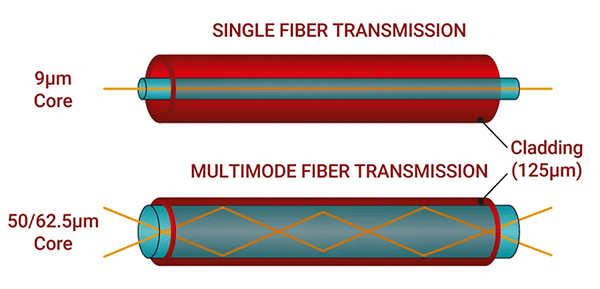
Single Mode Fiber uses one light path and reaches incredible distances. This is perfect for connecting buildings or campuses. Multimode Fiber uses multiple light paths, costs less than single mode, but works over shorter distances. Great for data center backbone connections.

Ethernet Cable Categories Explained

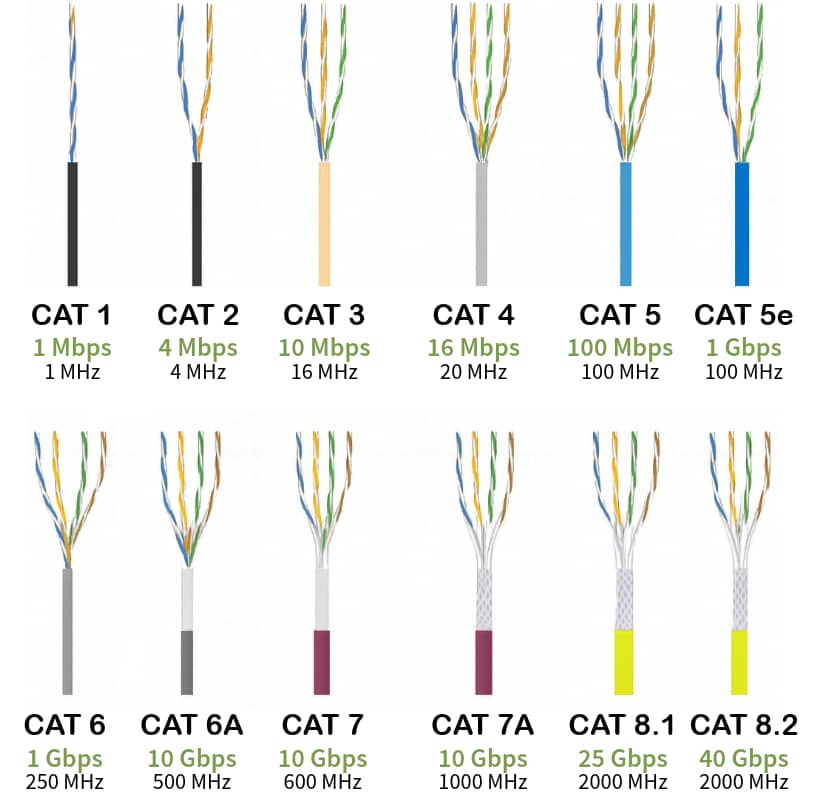
Since twisted pair dominates modern networks, let’s break down what those category numbers actually mean:

Cat5e (Category 5 Enhanced)

  • Speed: 1 Gbps
  • Bandwidth: 100 MHz
  • Distance: 100 meters

Cat5e has been around since the late ’90s, but don’t let that fool you. Cat5e still handles most office tasks without breaking a sweat. If your users aren’t complaining about slow network performance and you’re not pushing multi-gig applications, Cat5e gets the job done for a fraction of the cost of newer categories.

Cat6 (Category 6)

  • Speed: 10 Gbps up to 55 meters, 1 Gbps up to 100 meters
  • Bandwidth: 250 MHz
  • Distance: 100 meters (1G), 55 meters (10G)

Cat6 adds a plastic spline separator between wire pairs to reduce crosstalk. Perfect for WiFi 6 access points that need multi-gig backhaul connections. Just remember that 10G speed drops off after 55 meters, which becomes crucial for longer cable runs.

Cat6a (Augmented Category 6)

  • Speed: 10 Gbps
  • Bandwidth: 500 MHz
  • Distance: 100 meters

The enterprise sweet spot. Cat6a delivers full 10 Gbps performance over the complete 100-meter distance. Thicker and more expensive than Cat6, but it won’t leave you hanging when you need consistent high-speed performance over longer distances.

Cat7 (Category 7)

  • Speed: 10 Gbps
  • Bandwidth: 600 MHz
  • Only available shielded

Cat7 lives in standards limbo. ISO approved it, but TIA/EIA (the North American standards bodies) never blessed it. Some manufacturers developed proprietary connectors that aren’t compatible with standard RJ45 jacks. Unless you have very specific requirements, skip Cat7 and stick with Cat6a.

Cat8 (Category 8)

  • Speed: 40 Gbps
  • Bandwidth: 2 GHz
  • Distance: 30 meters

Cat8 is the data center speed demon. Built for 25G and 40G switch-to-switch connections where every millisecond counts. The cables are thick, expensive, and an overkill for typical enterprise deployments.

Pro Tip:

For enterprise WiFi deployments, Cat6a is your best friend. Modern WiFi 7 access points can push 2.5G or even 5G traffic back to your switch. Cat5e becomes the bottleneck, and Cat6’s distance limitations might bite you on longer runs. Cat6a gives you full 10G capability over 100 meters, providing plenty of headroom for current and future WiFi standards.

Cable Performance and Speed Capabilities

Cable specifications tell only part of the story. Real-world performance depends on installation quality, environmental conditions, and how well your equipment plays together.

For Enterprise Applications:

  • WiFi Access Points: Cat6a for multi-gig backhaul, future-proofing for WiFi 7
  • Switch Interconnects: Cat6a for 10G connections, Cat8 for 25G/40G in data centers
  • Server Connections: Fiber for backbone, Cat6a for 10G server NICs
  • Workstation Connections: Cat5e for basic office work, Cat6 for power users

Distance vs Performance Reality Check

Those maximum distance specs aren’t suggestions – they’re hard limits. A 105-meter Cat6 cable might link up, but you’ll get unpredictable performance. Network testing tools can identify these issues before they impact user experience.

Gaming Applications

Cat6 or Cat6a works great for gaming setups. The difference between Cat6 and Cat8 won’t turn you into a gaming god. Your internet connection speed and game server latency matter way more than cable category.

Pro Tip:

Don’t just chase maximum speeds – pay attention to your actual network bottlenecks. NetAlly’s Path Analysis feature in the EtherScope nXG can trace your connection from client to server, showing you exactly where performance drops off. You might discover that an expensive Cat8 cable isn’t fixing your real problem.

Choosing the Right Cable for Your Application

Enterprise Deployments:

Cat6a hits the sweet spot for most business networks. It supports current 10G equipment and leaves room for growth. The extra cost over Cat6 pays for itself when you don’t have to recable in three years.

Home Networks:

Cat5e handles typical home internet connections just fine. Even gigabit fiber connections won’t max out Cat5e capabilities. Spend your money on a better router instead.

Data Centers:

For data centers, use fiber for backbone connections and Cat6a or Cat8 for server connections depending on port speeds. The decision often comes down to equipment port density and power consumption.

Industrial Environments:

In industrial environments, shielded cables become essential around heavy machinery, motors, and electrical interference. The extra cost of the shielded twisted pair prevents mysterious connectivity issues that are a nightmare to troubleshoot.

Cable Compatibility and Performance

Good news – all Ethernet cable categories use standard RJ45 connectors, so newer cables work perfectly with older equipment from a physical connection standpoint.

That shiny Cat8 cable plugs right into your gigabit router without issues. But you’ll only get gigabit speeds because that’s what your router supports. The cable doesn’t magically boost your equipment’s capabilities beyond its design limits.

Cat7 compatibility gets tricky because of marketing confusion. The official Cat7 specification requires proprietary connectors (GG45 or TERA), but most cables labeled as “Cat7” in stores actually use standard RJ45 connectors. These RJ45-terminated cables perform somewhere between Cat6a and true Cat7 specs, but manufacturers market them as Cat7 anyway. It’s misleading, but that’s why you see “Cat7” cables that plug into regular Ethernet ports.

In mixed environments, your network runs at the speed of the slowest component. A Cat8 cable connected to Cat5e equipment still runs at Cat5e speeds. The weakest link in your chain determines overall performance.

Cable Length Limitations and Signal Quality

Cable length directly impacts network performance as signals weaken over distance. The magic number is 100 meters (328 feet) for twisted pair cables. Beyond that distance, signal strength drops below usable levels, causing packet loss, retransmissions, and connection failures.

Higher category cables don’t extend distance – they improve signal quality within that 100-meter limit. Cat7 and Cat6 both hit the same distance wall, though higher categories maintain better performance as you approach that limit.

Your internet speed isn’t determined by cable category if your current cable isn’t the bottleneck. Upgrading from Cat5e to Cat7 won’t boost gigabit internet – your service plan sets that limit.

Signal degradation follows basic physics. Higher frequency signals actually attenuate faster, which is why Cat6a and Cat8 need better construction to maintain performance over the full distance.

Cable Testing and Validation Methods

Professional cable testing catches problems that visual inspection misses. With NetAlly tools, you can save 60% of the time spent resolving network issues by identifying cable problems before they impact users.

Unterminated Testing uses Time Domain Reflectometry (TDR) – sending electrical pulses down the cable and measuring how long they take to bounce back. This reveals:

  • Cable length and distance to faults
  • Opens (broken wires)
  • Shorts between conductors
  • Split pairs (incorrect wiring standards)

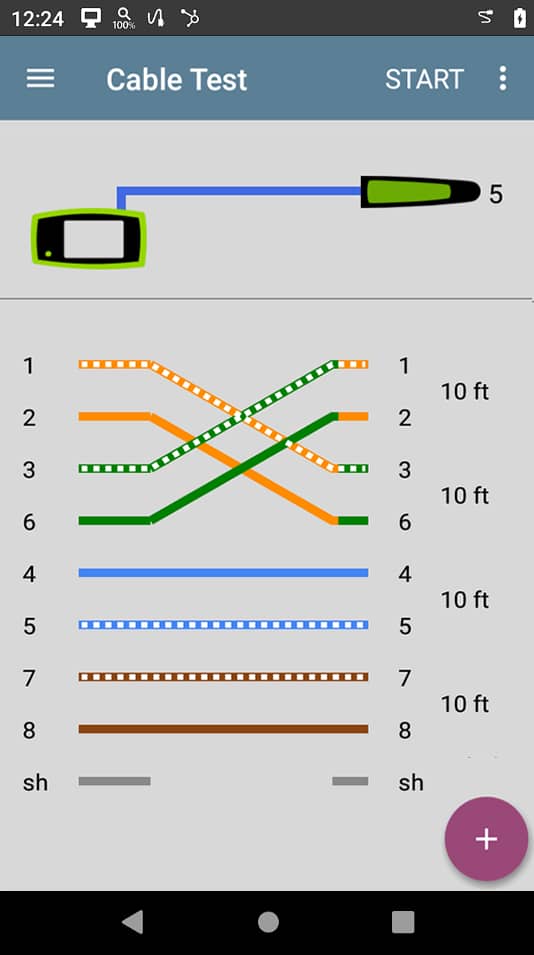
Terminated Testing requires wire view adapters at the far end but provides deeper validation:

  • End-to-end connectivity for every wire pair
  • Correct pin assignments (catching miswired connections)
  • Cable identification for documentation purposes

Performance Validation with LANBERT Media Qualification goes beyond basic connectivity by transmitting real network traffic at line rates. This tests whether your cable plant can handle the data speeds you’re paying for. It’s much more reliable than just checking electrical parameters against standards.

Troubleshooting Common Cable Issues

When your network starts acting up, knowing how to diagnose cable performance problems saves hours of headaches.

Split Pairs create one of the most frustrating problems. Your connectivity test passes, but performance is terrible. This happens when installers don’t follow T568A or T568B wiring standards properly, causing wire pairs to get “split” across different physical twisted pairs. The result? Crosstalk that destroys performance even though the cable technically “works.”

Downshifting occurs when your 10G-capable equipment stubbornly links at slower speeds due to marginal cable quality. The connection works, just not at the speed you’re paying for. Signal-to-noise ratio measurements help identify these problem cables before they impact users.

Length Problems sneak up on you because a 110-meter cable run might seem fine during initial testing. But it exceeds the 100-meter specification, causing performance to degrade gradually over time. These intermittent issues are particularly painful to diagnose because they don’t fail consistently.

Poor Connections at patch panels or jacks create the most unpredictable performance problems. A slightly loose connection might work fine under light load but fail when traffic increases. Cable testing with proper termination reveals these hidden troublemakers immediately.

Professional testing tools reduce problem escalations by 30% because they identify root causes instead of chasing symptoms. When you can prove the cable plant meets specifications, troubleshooting focuses on the real villains instead of endless cable swapping.

Advanced Cable Technologies and Future Considerations

Cat9 doesn’t officially exist yet, but the networking industry’s appetite for speed suggests it’s inevitable. If Cat9 emerges, it will likely push beyond Cat8’s 40 Gbps while staying within twisted pair’s 100-meter limit.

The real challenge isn’t speed – it’s physics. Higher frequencies mean more signal loss, requiring even better shielding and construction. Meanwhile, Power over Ethernet demands keep growing, data center speeds climb relentlessly, and edge computing needs reliable connections everywhere.

Market trends show fiber gaining ground for backbone connections while twisted pair evolves for end devices. The smart money isn’t on revolutionary changes but evolutionary improvements: better shielding, enhanced power delivery, and perhaps new connectors that maintain backward compatibility.

So, Which Cable Should You Choose?

Ethernet cable selection doesn’t have to be rocket science. Understand your application requirements, pick the right category for your performance needs, and test everything properly.

Cat5e still delivers solid performance for everyday connectivity tasks. Cat6a strikes the right balance for enterprise networks that need room to grow. Cat8 finds its home in data centers where massive bandwidth justifies the cost. Fiber steps in when copper simply can’t go the distance.

But remember – the best cable in the world won’t help if it’s installed poorly or never tested. That’s where professional testing equipment proves its worth by catching problems before they impact your users.

To validate your cable infrastructure like a pro, check out these NetAlly solutions:

  • LinkRunner AT 4000 – Smart network and cable tester for comprehensive diagnostics
  • LinkRunner 10G – Advanced multi-gig cable testing and performance validation
  • EtherScope nXG – Complete network analysis including cable testing and WiFi analysis

Major update brings up to 900 Mbps iPerf throughput, enhanced Wi-Fi 7 insights, and improved cloud-based collaboration via Link-Live portal.

Colorado Springs, Colorado, USA – July 1, 2025 – NetAlly, a leading innovator in handheld network testing solutions, today announced the release of AllyWare™ v2.8, the latest software update across its award-winning line of network testers, including AirCheck® G3, CyberScope®, EtherScope® nXG, and LinkRunner® series tools. Available for all customers with AllyCare (NetAlly’s premium product support), the update delivers significant enhancements that continue to raise the bar for network visibility, performance validation, and troubleshooting efficiency.

“Version 2.8 reflects our commitment to constant innovation and listening to our customers,” said Julio Petrovitch, Senior Product Manager at NetAlly. “With this release, we’re enabling users to validate Wi-Fi 7 deployments, achieve higher throughput in performance tests, and streamline cloud-based collaboration—all critical needs for modern network teams.”

Highlights of AllyWare v2.8 include:

  • iPerf Test Enhancements – Up to 900 Mbps Throughput
    An updated iPerf engine introduces intelligent multi-threaded processing, significantly increasing test throughput—up to 900 Mbps in lab conditions. This delivers more accurate and reliable network performance insights, especially in bandwidth-intensive environments.
  • Deeper Wi-Fi 7 Visibility & Control
    Support for Wi-Fi 7 (802.11be) BSSID rate and capability analysis gives IT pros the real-time insights needed to validate new wireless deployments. New filtering, signal threshold controls, and spectrum navigation tools make wireless troubleshooting faster and more precise.
  • Improved Usability and Filtering
    A new search function in the Wi-Fi app, enhanced filter controls (select/deselect all), and custom signal adjustments per channel make analysis and device identification easier than ever.
  • Smarter Link-Live Integration
    LANBERT™, Path Analysis, and iPerf results are now automatically uploaded to Link-Live™, improving team collaboration, historical reporting, and centralized project management.

This update is free to all customers with an active AllyCare™ support contract. Customers with expired contracts are encouraged to renew to take advantage of these new capabilities and ensure continued access to future updates.

Available For:

  • AirCheck G3
  • CyberScope, CyberScope Air, CyberScope XRF
  • EtherScope nXG
  • LinkRunner AT 3000, AT 4000, and LinkRunner 10G

NetAlly also confirmed that another AllyWare release is planned before the end of the year, underscoring the company’s dedication to rapid innovation and ongoing value for AllyCare customers.

About NetAlly
For decades, the NetAlly family of network test and analysis solutions has been helping network and cybersecurity professionals better deploy, manage, maintain, and secure today’s complex wired and wireless networks. Since creating the industry’s first handheld network analyzer in 1993, NetAlly continues to set the standard for portable network analysis and cybersecurity assessment with tools that include EtherScope nXG, CyberScope, AirMagnet, LinkRunner, LinkSprinter, AirCheck, and more. NetAlly simplifies the complexities of network testing and cybersecurity assessments, provides instant visibility for efficient problem resolution, and enables seamless collaboration between site personnel and remote experts. To learn more and see how NetAlly helps network and security professionals get their jobs done faster, visit https://www.netally.com/, follow us on Facebook, Twitter/X, LinkedIn, Instagram or YouTube.

Is your WiFi painfully slow when it should be blazing fast? WiFi channel overlap is likely the issue. It’s like trying to have a conversation at a rock concert – everyone’s shouting, but nobody can understand a word.

For network professionals, understanding and addressing WiFi channel overlap can make the difference between a high-performing network and one that constantly disappoints users. Poor channel planning can cut network capacity in half. For businesses, this directly impacts operations through slower connections, dropped calls, and frustrated users.

In this blog, we’ll explore what channel overlap is, how it affects performance across different frequency bands, and provide practical solutions to identify and fix these issues.

WiFi Channels Explained: 2.4GHz vs 5GHz vs 6GHz

WiFi channels function like highway lanes. When too many devices use overlapping frequencies, performance suffers dramatically. Regional regulations affect which channels are available in different countries across all frequency bands.

2.4GHz Band

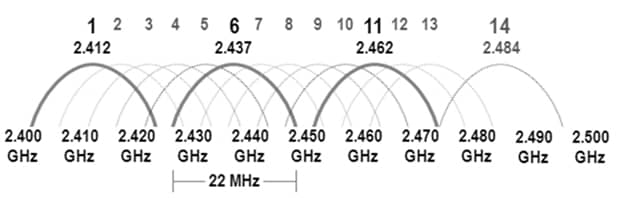
  • Only channels 1, 6, and 11 are WiFi non-overlapping channels
  • Offers better range but suffers from significant congestion
  • In North America, channels 1-11 are available, while some regions permit up to channel 13 (Japan exclusively allows channel 14

The WiFi channel overlap chart above shows why channels 1, 6, and 11 are preferred – they don’t overlap with each other.

Pro Tip:

Channel 14 remains illegal everywhere except Japan. Stick with WiFi non-overlapping channels 1, 6, and 11 unless you’re keen on having a friendly chat with regulatory authorities.

5GHz Band

  • Provides 25 non-overlapping channels (quantity varies by country)
  • Less crowded but doesn’t reach as far
  • Supports multiple channel widths: 20/40/80/160MHz
  • Many 5GHz channels are labeled as “DFS” (Dynamic Frequency Selection). These channels share the same frequencies that weather and military radar systems use. WiFi devices must monitor for radar signals and switch channels if detected. Regulations for these channels vary by country.

6GHz Band (WiFi 6E and WiFi 7)

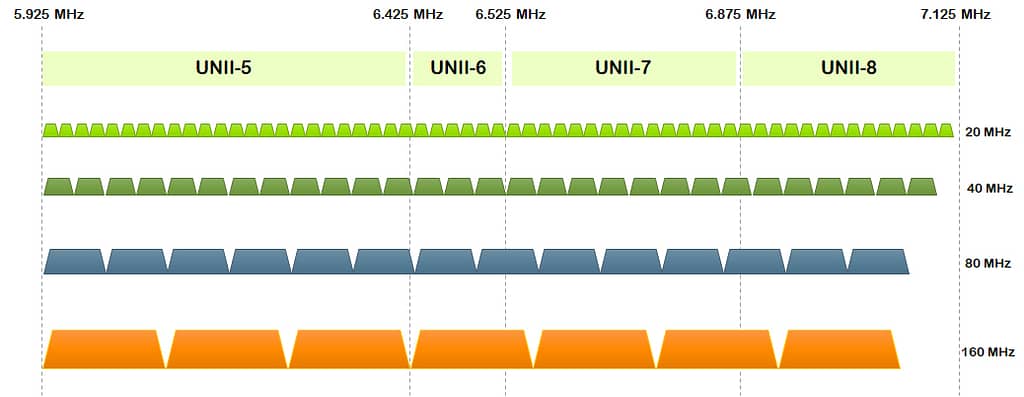
  • Delivers 59 non-overlapping channels in the US
  • Offers clean, uncluttered spectrum without legacy device interference
  • Supports channels up to 320MHz wide with WiFi 7
  • Not all countries have approved 6GHz for WiFi use, with varying amounts of spectrum allocated in different regions

Pro Tip:

Channel width impacts performance significantly. Think of it as road lanes – more lanes (wider channels) move more data but consume more of the limited frequency space.

How WiFi Channel Overlap Causes Interference

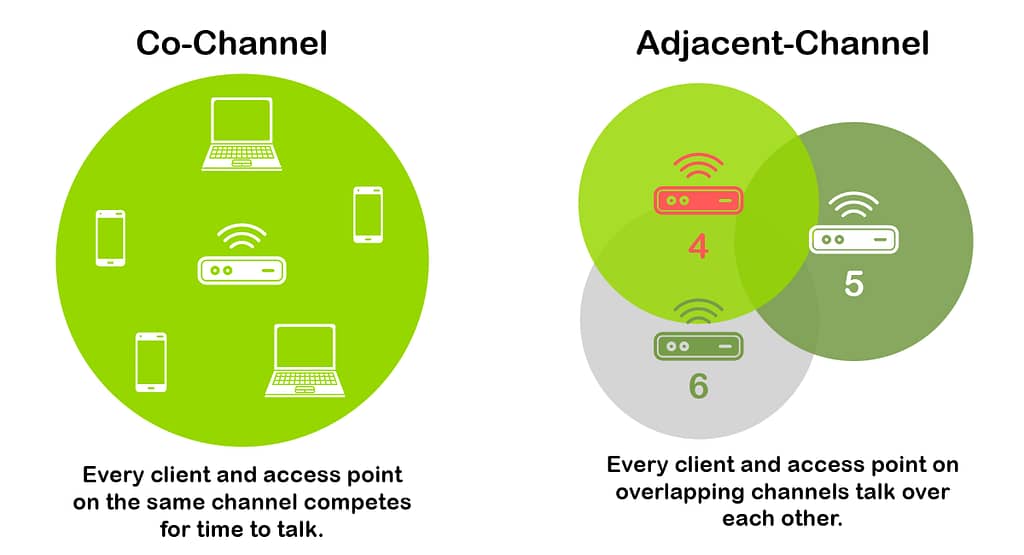
Two types of interference result from WiFi channel overlap.

Co-Channel vs. Adjacent Channel Interference

Type What Happens Impact
Co-Channel (CCI Access points on same channel coordinate transmissions Slower but remains functional
Adjacent-Channel (ACI) Overlapping signals corrupt each other Data loss and constant retransmissions

Older WiFi standards use CSMA/CA (Carrier Sense Multiple Access with Collision Avoidance), which works like a polite conversation. Before transmitting, devices first listen to see if the channel is clear. If they detect another transmission, they wait a random period before trying again.

Here’s why CSMA/CA works well with co-channel interference but fails with partial overlap:

  • With co-channel interference (same channel): Devices can properly “hear” each other and politely take turns. Performance slows as more devices join, but the system remains functional.
  • With adjacent channel interference (overlapping channels): Devices can’t properly detect transmissions on partially overlapping channels. They incorrectly think the channel is clear and transmit anyway, causing signal corruption when the transmissions collide. This leads to data loss and constant retransmissions.

Newer WiFi 6/6E/7 standards use OFDMA (Orthogonal Frequency Division Multiple Access), which divides the channel into smaller resource units that can be assigned to different devices simultaneously. This is like converting a single-lane road into multiple lanes, allowing more efficient handling of traffic. While OFDMA reduces co-channel interference significantly, it still cannot fully solve adjacent channel interference problems.


Pro Tip:

Adjacent channel interference creates far more problems than co-channel interference. When choosing between a busy non-overlapping channel or an empty overlapping channel, always select the busy non-overlapping option.


How to Check WiFi Channel Overlap

How to check if your WiFi has channel overlap issues, requires specialized tools. NetAlly’s solutions reveal what’s actually happening in your wireless environment:

  • AirCheck G3 PRO – Handheld analyzer that immediately displays channel usage patterns and identifies WiFi channel overlap
  • EtherScope nXG – Provides comprehensive analysis of both WiFi and wired networks

How to check WiFi channel overlap symptoms: Watch for fluctuating performance, unexpected disconnections, and the frustrating combination of strong signal but poor throughput.

Pro Tip:

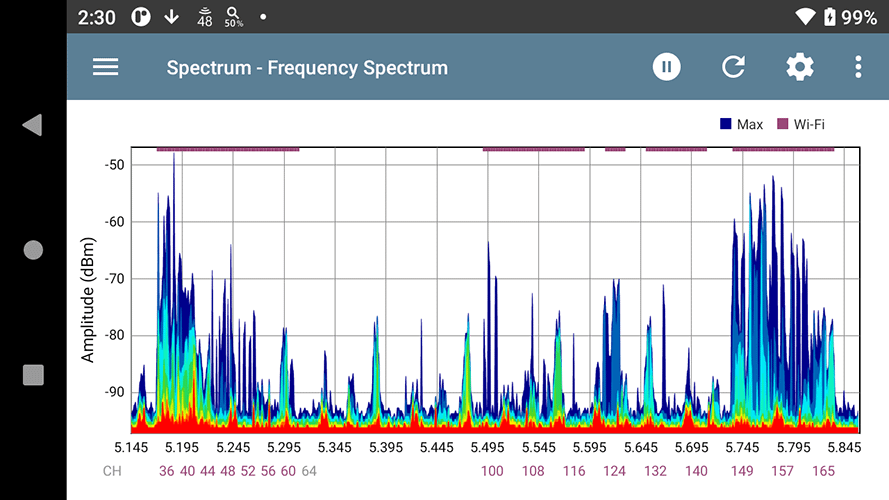
Channel interference problems can also be caused by non-WiFi interferers. In this case you should use a spectrum analyzer like the NXT-2000 from NetAlly, which allows you to identify non-WiFi interference sources that standard analyzers completely miss and measures both channel occupancy and noise floor levels.

Best Practices for WiFi Channel Planning

Quick Channel Selection Guide

Band Best Practice Channel Width
2.4GHz Use exclusively WiFi non-overlapping channels 1, 6, 11 Stick to 20MHz for all setups
5GHz Start with non-DFS channels 40MHz works well in many cases
6GHz Spread usage across available channels 80MHz can be used in many instances

Effective channel planning means configuring access points, so they don’t interfere with each other. For 2.4GHz, always use channels 1, 6, and 11 because they don’t overlap. For 5GHz, start with channels that don’t require radar detection (36-48 and 149-165) before using DFS channels.

The 6GHz band works with both WiFi 6E and WiFi 7 devices and offers much more space for wider channels. For outdoor deployments, 6GHz requires checking a database (AFC) before transmitting to protect existing users.

Choose channel widths based on how many access points you have:

  • Home/Small Office: Wider channels (40/80/160/320MHz) give faster speeds when you have fewer access points
  • Medium Business: Mix of 40MHz on 5GHz and 80MHz on 6GHz balances speed and capacity
  • High-Density Environment: Narrower channels (20/40MHz) allow more non-overlapping channels to be used

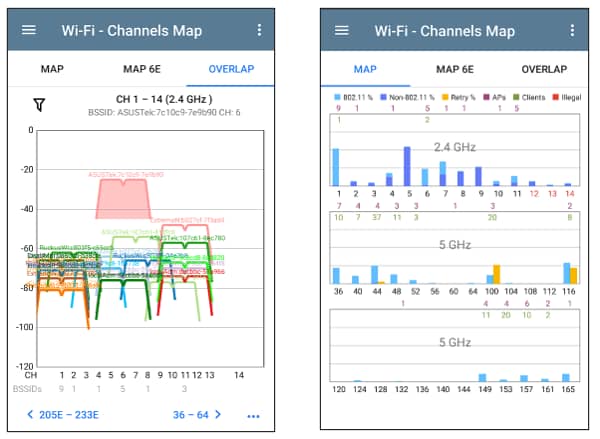
For networks with multiple access points, plan their placement and channel assignments carefully to minimize overlap. A channel overlap chart like that available on NetAlly tools helps you see which channels will conflict with each other.

How to Fix WiFi Channel Overlap Problems

  1. Assess – Determine which channels your network and neighbors currently use with a WiFi channel overlap chart
  2. Implement – Switch to WiFi non-overlapping channels (e.g. 1, 6, 11 on 2.4GHz)
  3. Adjust Power – Lower power settings to prevent signals from access points using the same channel to overlap with each other
  4. Verify – Measure throughput in previously problematic areas

If forced to choose, even when it’s busier, go with the crowded channels instead of the overlapping ones.

To effectively resolve WiFi channel overlap issues and boost network performance, explore NetAlly’s purpose-built tools: the AirCheck G3, AirMagnet Survey PRO, EtherScope nXG, and CyberScope Air.

New tool enhances WiFi 6E/Wi-Fi 7 performance by enabling identification and mitigation of 6GHz interference

Colorado Springs, Colorado, USA – May 15, 2025 – NetAlly, a leading provider of IT network test and analysis solutions, today announced the launch of its new NXT-2000 6 GHz Spectrum Analyzer, designed to work seamlessly with NetAlly’s handheld WiFi analysis tools. This cutting-edge solution enables network engineers and IT professionals to effectively identify and mitigate interference issues in the 6 GHz spectrum band, ensuring optimal performance of WiFi 6 and WiFi 7 networks.

“The NetAlly NXT-2000 6 GHz Spectrum Analyzer is the missing piece that completes the all-in-one toolkit,” says Blake Krone, Managing Director of Mobiadroit, a leading WiFi consulting firm. “Paired with my EtherScope® nXG or CyberScope®, I can perform comprehensive end-to-end wireless and wired testing—without juggling multiple devices, dongles, or adapters. Everything I need is right there, in one device, in the palm of my hand.”

WiFi 6 and WiFi 7 are growing quickly – the WiFi Alliance predicts that WiFi 6 will make up 79% of product shipments within two years. Analyst firm IDC predicts WiFi 7 will make up about half of new enterprise-class dependent AP revenues over the same time period. As organizations adopt WiFi 6 or WiFi 7 to take advantage of increased bandwidth and reduced congestion, the ability to troubleshoot interference and spectrum utilization on all three WiFi bands has become essential. NetAlly’s 6 GHz Spectrum Analyzer extends the powerful diagnostic capabilities of its existing handheld network test tools by providing deep visibility into RF activity across all WiFi bands (2.4 GHz, 5 GHz, and now 6 GHz). NetAlly customers report saving up to 60% of the time spent resolving network issues and 77% better user experience compared to other methods.

“Our customers are rapidly adopting new WiFi technologies, but troubleshooting issues in the 6 GHz band remains a challenge,” said Dan Klimke, Director of Product Marketing at NetAlly. “With this new spectrum analyzer, IT teams can easily pinpoint sources of interference, validate spectrum availability, and optimize their wireless environments, ensuring a reliable and high-performing network.”
Key Features of the NetAlly 6 GHz Spectrum Analyzer:

  • Full-Spectrum Visibility – Detects and analyzes RF interference across 2.4 GHz, 5 GHz, and 6 GHz bands.
  • Seamless Integration – Works with NetAlly’s handheld WiFi analyzers for comprehensive troubleshooting.
  • Real-Time Interference Location – Pinpoints sources of non-WiFi interference that could degrade network performance using an internal omnidirectional or external directional antenna.
  • Improves Network Security – Secure the WiFi network by inspecting No Wireless Zones and locating intentional RF interference sources.
  • Better Performance – Faster interferer detection and location with higher frequency resolution and sweep times than other solutions on the market.
  • User-Friendly Interface – Provides intuitive visual insights to simplify wireless diagnostics.
  • Portable and Rugged Design – Ideal for field use by network professionals in a variety of environments.

NetAlly’s 6 GHz Spectrum Analyzer is an essential tool for network engineers, IT administrators, and managed service providers (MSPs) looking to maximize the performance of WiFi 6 or WiFi 7 deployments and ensure a superior user experience.

About NetAlly
For decades, the NetAlly® family of network test and analysis solutions has been helping network and cybersecurity professionals better deploy, manage, maintain, and secure today’s complex wired and wireless networks. Since creating the industry’s first handheld network analyzer in 1993, NetAlly continues to set the standard for portable network analysis and cybersecurity assessment with tools that include EtherScope® nXG, CyberScope®, AirMagnet®, LinkRunner®, LinkSprinter®, AirCheck®, and more. NetAlly simplifies the complexities of network testing and cybersecurity assessments, provides instant visibility for efficient problem resolution, and enables seamless collaboration between site personnel and remote experts.

How to Check WiFi Quality?

Introduction

We all depend on WiFi – whether it’s for streaming your favorite shows, having a video call, or just browsing cat videos. That’s why it is very important to have a good, solid, WiFi connection. Bad WiFi can lead to endless buffering, dropped calls, and overall frustration. But how do you actually check your WiFi signal quality? This tech tip will teach you everything you need to know.

What is WiFi Quality?

WiFi quality isn’t just about a strong signal. It’s about the overall performance of your wireless network – think of it as a report card for your WiFi. Several components must work together smoothly, just like all subjects in school need good grades to pass. Key components include:

  • Signal Strength: How strong is the signal?
  • Speed: How fast can you download and upload?
  • Latency: How long does data take to travel?
  • Jitter: How consistent is that travel time?
  • Loss: How much data is being lost and resent?

Regular checkups help you spot problems early.

Key WiFi Quality Metrics

Let’s dive a bit deeper into those key metrics. Think of them as the vital signs of your WiFi network:
Signal Strength (RSSI): Measured in decibels-milliwatts (dBm), this tells you how strong the signal is from your router or access point (AP). The closer to 0, the stronger the signal. So, -50 dBm is great, while -80 dBm is not so great.

  • Download/Upload Speeds: Measured in megabits per second (Mbps) or gigabits per second (Gbps). This is probably what you care about most – how quickly can you start binge-watching that new series?
  • Latency: Measured in milliseconds (ms). This is the delay between when you send a request (like clicking a link) and when you get a response. High latency can make your internet feel sluggish, even if your speeds are good.
  • Jitter: Also measured in milliseconds (ms). It is all about consistency. High jitter means your latency is fluctuating a lot, which can cause problems with things like video calls and online games (imagine your character freezing every few seconds!).
  • Packet Loss: Measures the amount of data that fails to reach the receiver, indicating an unstable connection that can disrupt communication.
Metric Unit Description Ideal Range (Example)
Signal Strength dBm Strength of the WiFi signal -50 to -67 dBm
Download Speed Mbps/Gbps How fast data is received 25 Mbps
Upload Speed Mbps/Gbps How fast data is sent 3 Mbps
Latency ms Delay in data transfer <50 ms
Jitter ms Variability in latency <30 ms
Packet Loss % Percentage of data packets that are lost in transit <1%

Pro-Tip

The ideal range for most of the metrics provided above will depend on the type of applications you will be running and the number of devices that will be connecting to your network. For example, for 4K video streaming you will need Download speeds higher than 25 Mbps per stream. So, if you plan to stream two 4K videos at the same time your download speeds should be higher than 50 Mbps.

Common WiFi Quality Issues

Before talking about solutions, let’s look at some common WiFi problems:

  • Interference: Other devices using radio waves (microwaves, Bluetooth) can disrupt your WiFi.
  • Distance: The farther you are from the router or AP, the weaker the signal.
  • Channel Congestion: WiFi channels can get crowded, like a busy highway.
  • Hardware Limitations: An old device (router, AP, phone, tablet, etc.) might not support the latest WiFi standards.

How to Test and Improve WiFi Quality

Alright, time to put on your detective hat and start testing – and then, fixing! This section combines how to test with how to improve each metric, because knowing the problem is only half the battle. We also include common quality issues.

Signal Strength (RSSI)

  • Testing: Use a network analyzer tool like the EtherScope nXG, AirCheck G3, or CyberScope to measure the signal strength (RSSI) in different locations. These tools will give you precise readings, unlike basic phone apps. Common issues are environmental obstacles, distance and hardware limitations.
  • Improving: If your signal strength is weak (-70 dBm or lower), try these:
    • Move your router or AP: Put it in a central and open location, free from obstructions like walls and furniture.
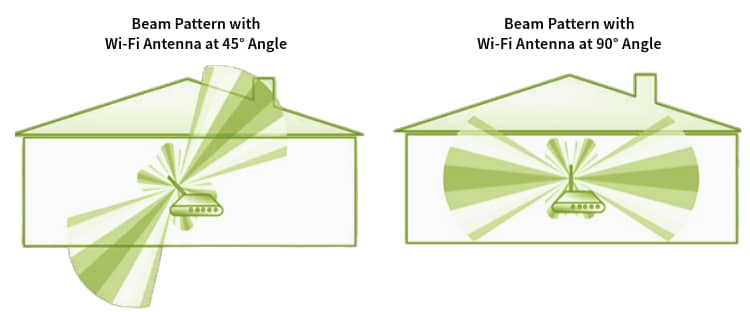
    • Adjust antennas: If your router or AP has external antennas, try repositioning them.
    • Add more access points: You could install more access points to increase the coverage, or use WiFi extenders.
    • Upgrade your router or AP: Consider a newer router or AP model that supports the latest WiFi standards (like WiFi 6E or WiFi 7) for better range and performance.
Pro-Tip
Many times, WiFi signals from a router or AP don’t propagate the same way in all directions (they are not completely omni-directional). Because of that, when installing a home Wi-Fi router, don’t mount it on a high place. It’s better to install it about 2-3 feet from the floor (table height). When it comes to enterprise APs make sure to check the device specifications as they could be designed to be mounted on roofs, walls, or even under the floor.

Download/Upload Speeds

  • Testing: You can use online speed test tools for a general idea. For more detailed analysis, NetAlly tools can run performance tests to show your actual local area network throughput. Common issues are interference, distance, channel congestion and hardware limitations.
  • Improving: Slow speeds?
    • Check for interference: Other electronic devices (microwaves, Bluetooth devices) can interfere with your WiFi signal. Try to minimize their use near your router or AP.
    • A stronger signal and lower noise: This will increase your signal to noise ratio (SNR). An SNR of 25 dBm or higher is recommended for the best performance.
    • Update your hardware: Because of technological limitations at the time they were made, older hardware won’t achieve higher speeds.
    • Check your channel: Use a network analyzer like those from NetAlly to see if the WiFi channels you are using are overcrowded. If so, switch to a less congested channel.
Activity Required Speed Recommended Speed
Email 1 Mbps 1 Mbps
Web Browsing 3-5 Mbps 5-10 Mbps
Social Media 3-5 Mbps 10 Mbps
Video Calls & Conferencing 3-5 Mbps 10-20 Mbps
HD Streaming 5-10 Mbps 10-20 Mbps
Online Gaming 3-6 Mbps 25-35 Mbps
4k Streaming 25 Mbps 35 Mbps
Internet Speed Recommendations

Pro-Tip

Online speed test tools are a great way to measure your internet access speeds, but when there is a problem, they won’t tell you if the problem is the internet access or your network.

Latency

  • Testing: Network analyzers like those from NetAlly can measure latency, often using a ping test. Common issues are interference and channel congestion.
  • Improving: High latency is often caused by network congestion.
    • Reduce network traffic: Limit the number of devices using the network simultaneously, especially for bandwidth-intensive activities.
    • Prioritize traffic: Use Quality of Service (QoS) settings on your router or AP (if available) to prioritize latency-sensitive applications like video conferencing or online gaming.
    • Check your channel: Overcrowded WiFi channels can increase your latency, too. If there are too many devices working on the same channel you are using, switch to a less congested one.

Jitter

  • Testing: Similar to latency, network analyzers like those from NetAlly mentioned before can measure jitter. Common issues are interference and channel congestion.
  • Improving: Jitter is also often related to network congestion and interference. The same steps to improve latency will often help with jitter, too.

Packet Loss

  • Testing: With a network analyzer like those from NetAlly, you can measure if any packets got lost and how many times data transmissions had to be retried. A common issue are environmental obstacles, distance, and interference.
  • Improving: Make sure your signal strength is stronger than -67 dBm and lower levels of interference.
    • Increase your signal strength: Put your router or AP in a central and open location, install more APs or extenders, or reposition the antennas (if using external ones).
    • Check for interference: Move sources of interference away from your router or AP. If that is not possible, try moving the router or AP away from the interferers.

Conclusion

Checking your WiFi quality is essential, and even more important: improving the quality. By understanding the key metrics, using the right tools and addressing common issues, you can identify problems and make sure your network is running smoothly. So don’t let bad WiFi ruin your day – take control and become the master of your wireless domain!

Ready to become a WiFi expert? Check out our network analyzer tools, like the EtherScope nXG, AirCheck G3, and CyberScope.

Industry-leading networking test and analysis company appoints proven channel and sales leader to support revenue growth, market development and partner expansion.

29th January 2025 – Colorado Springs, CO USA – NetAlly, a global leader in handheld network test and cybersecurity solutions, is doubling down on its commitment to EMEA market growth with the appointment of Nathan Collins as Regional Vice President. Collins brings decades of expertise to lead the company’s ambitious expansion strategy, focusing on empowering partners and enhancing network resilience.

NetAlly provides network test, management and security products for companies to better understand and secure their networks. Their solutions cover a range of network management requirements, from testing tools that technicians can use to troubleshoot network issues in seconds to robust cybersecurity solutions that provide fast insights into potential vulnerabilities in edge network environments.

With over 300 active partners across the EMEA region, NetAlly is transitioning to a fully two-tier distribution model to ensure its cutting-edge solutions are readily available in all major markets. By partnering with local distributors, NetAlly enables faster product availability, better service quality, and streamlined operations for both customers and partners. Collins brings his more than 25 years of expertise in the data storage, networking, and business continuity markets to NetAlly, including senior leadership positions at the likes of AvePoint, CommVault, Druva, and PAVilion.

“Companies rely on their networks to connect their operations and support their goals, so networks must evolve faster and be dynamic and responsive to those business goals. At the same time, increasing regulation and security challenges make building, deploying, and managing networks more challenging than ever. Helping our customers and partners navigate these evolving trends is crucial to our success. Nathan brings us a wealth of experience to help us deliver these goals,” said Mike Parrottino, CEO at NetAlly.

“The European Union has introduced numerous new regulations focused on security and resilience, while similar critical infrastructure regulations are being enforced in the UK for companies and service providers. These regulations aim to make digital services more reliable and resilient, but they need to be supported over time, all the time. Without strong networks, you can’t deliver those great digital services to your customers. Compliance with these security regulations is a critical requirement for both partners and customers. NetAlly’s network test and security vulnerability solutions will be essential to stay compliant,” explained Collins. “I look forward to working with our partners on developing their networking infrastructure businesses, delivering more opportunities for them, and ensuring more reliable and secure networks for their customers.”

Intec Microsystems is a NetAlly distributor based in the UK. Of their partnership with NetAlly, Tom Newall, direct vendor manager, said, “The market certainly has a strong, positive sentiment about NetAlly. As a trusted advisor to our customers, we saw partnering with NetAlly as a way to build out our solutions portfolio and capture a larger share of wallet in our market space.” Newall continued, “The launch of our partnership was our most successful vendor kick-off in 2024. Our team is very enthusiastic about this addition to our portfolio, as NetAlly’s product line provides an attractive margin and good value attach to our network infrastructure sales. On top of that, their team is easy to work with and super responsive.”

Lennart Heijnen, CEO at Heynen BV, a Dutch supplier of solutions in the field of professional electronics in the Benelux countries, said of their partnership with NetAlly, “We’ve experienced many years of year-over-year growth with the NetAlly portfolio, including significant large deals with several service providers. We’ve had particular success with a key customer in the electronic payments processing industry. NetAlly’s close collaboration, teamwork, and responsiveness to their unique needs resulted in multiple large orders over the years.”

Under Collins’ leadership, NetAlly is poised to transform how partners and customers experience network management and cybersecurity in the EMEA region. By focusing on accessibility, innovation, and collaboration, NetAlly will ensure that every business, from local enterprises to global corporations, can have secure, high-performance networks they can rely on.

About NetAlly
For decades, the NetAlly® family of network test and analysis solutions has been helping network and cybersecurity professionals better deploy, manage, maintain, and secure today’s complex wired and wireless networks. Since creating the industry’s first handheld network analyzer in 1993, NetAlly continues to set the standard for portable network analysis and cybersecurity assessment with tools that include EtherScope®nXG, CyberScope®, AirMagnet®, LinkRunner®, LinkSprinter®, AirCheck™, and more.

NetAlly simplifies the complexities of network testing and cybersecurity assessments, provides instant visibility for efficient problem resolution, and enables seamless collaboration between site personnel and remote experts. To learn more, visit https://netally.com, follow us on Facebook, X, LinkedIn, Instagram or YouTube.

In-depth AutoTest provides unmatched visibility for Ethernet cable and network link validation and troubleshooting.

Las Vegas, Nevada, USA – June 3, 2024 – Today at the Cisco Live! event, NetAlly announced the availability of its next-generation LinkRunner® AT network and cable testers, continuing a twenty-plus year legacy of innovative troubleshooting tools for network engineers and technicians.

The LinkRunner AT 3000 delivers fast and comprehensive validation of copper and fiber network links with powerful network connectivity troubleshooting. While offering the same core functions of its predecessors (LinkRunner AT 1000 and 2000 models), the LinkRunner AT 3000 features a large touchscreen and a more in-depth AutoTest that provides deeper network visibility on Ethernet links from 10 Mbps to 10 Gbps – all at the same price as the AT 2000.

With the addition of network discovery, path analysis, and packet capture, the LinkRunner AT 4000 provides deeper visibility and diagnostics, enabling network professionals to quickly resolve issues impacting single or multiple devices and network segments. Automated topology mapping in Link-Live, NetAlly’s collaboration, reporting and analysis platform, delivers ‘up-to-the-minute’ accurate networks maps for easy documentation.

“The LRAT 4000 has proven to be an exceptional addition to our toolbox,” said Paul Sutherland, engineer at Hallbeck IT. “It has significantly reduced the time and cost associated with the troubleshooting process. This tool has enhanced our ability to quickly identify active network faults, a task that would have been much more time-consuming with conventional methods.”

“The venerable LinkRunner has served IT professionals for over two decades as the most popular connectivity tester in existence,” said James Kahkoska, NetAlly Chief Technology Officer.  “Implementing our AllyWare™ common technology platform on LinkRunner AT has enabled the complete transformation of these instruments with functionalities present in NetAlly’s more advanced testers while providing a familiar user experience, both on the testers as well as in Link-Live.”

Lee Badman, wireless network architect at Wirednot, said, “The latest LinkRunner AT from NetAlly upgrades this very handy product line in all the right ways – from support for the latest PoE standards and switch interfaces to rework of the user interface for ultra-effectiveness, the reasons to invest or upgrade are many.”

The new LinkRunner AT models are available from NetAlly’s authorized channel partners across North America, Europe, and Asia. For more information: https://www.netally.com/linkrunner-ethernet-testers/

Single instrument combines edge network vulnerability scanning with Wi-Fi and BT/BLE

wireless network performance testing and surveying.

Colorado Springs, Colorado, USA – March 5, 2024 – Today, NetAlly announced the expansion of
its cybersecurity assessment product line with the addition of CyberScope® Air, a Wi-Fi
vulnerability scanner and tester for assessing the security posture of WLANs against policies,
generating compliance reports, and performing ongoing monitoring for changes.
“The CyberScope family of tools are the first and only devices I’ve seen that can address
network security in meaningful ways at the network edge,” says Jennifer Minella, cybersecurity
author and co-host of the Packet Protector podcast.
Minella continues, “These tools bridge the gap between security and network operations in
meaningful ways, by allowing on-demand or pre-configured security assessments to test for the
vulnerabilities and misconfigurations that most often contribute to breaches, malware, and
other incidents.”
In April last year, NetAlly introduced CyberScope, the world’s first wired Ethernet and wireless
handheld edge network vulnerability scanner for in-depth cybersecurity assessments.
CyberScope Air offers a wireless-only version for security practitioners and network engineers
focused on wireless edge networks.
“With the massive proliferation of endpoints and ubiquitous connectivity in edge networks,
security professionals need a fast and easy way to have ‘eyes on’ all of the devices at the sites
they manage,” says James Kahkoska, NetAlly CTO.
With today’s announcement, NetAlly amplifies the power of CyberScope’s discovery capabilities
with new capabilities in their Link-Live collaboration, reporting and analytics platform, providing
fast insight into the devices in a site network over time.
New graphical dashboards provide instant insight into endpoints and network configurations
allowing easy exploration in chart, table, or topology views. The Discovery Monitoring feature
allows automated daily, weekly, or monthly snapshots to be uploaded to Link-Live to track new
and missing devices or Wi-Fi access points and clients. Powerful filtering and grouping allow

NetAlly, LLC ● 2075 Research Pkwy – Suite 190 ● Colorado Springs, CO 80920 simplicity ● visibility ● collaboration
analysis to instantly identify new devices, changes within a device, or for tracking specific
devices and types over time.
Mike Parrottino, NetAlly CEO adds, “The release of CyberScope Air is another milestone in
NetAlly’s efforts to bring our thirty years of experience in network visibility technology to
cybersecurity professionals whose current toolset lacks in-depth, tactical situational awareness
in edge networks.”
According to NetAlly, their CyberScope family of products help security practitioners by:

 Easily validating security controls at the edge.
 Inventorying everything including IoT, OT, unmanaged devices.
 Quickly testing and demonstrating policy compliance.
 Enabling collaboration and sharing between teams.

For more information, visit https://cyberscope.netally.com

About NetAlly
For decades, the NetAlly ®  family of network test and analysis solutions has been helping
network and cybersecurity professionals better deploy, manage, maintain, and secure today’s
complex wired and wireless networks. Since creating the industry’s first handheld network
analyzer in 1993, NetAlly continues to set the standard for portable network analysis and
cybersecurity assessment with tools that include EtherScope® nXG, CyberScope®, AirMagnet®,
LinkRunner ® , LinkSprinter®, AirCheck™, and more. NetAlly simplifies the complexities of
network testing and cybersecurity assessments, provides instant visibility for efficient problem
resolution, and enables seamless collaboration between site personnel and remote experts. To
learn more and see how NetAlly helps network and security professionals get their jobs done
faster, visit https://netally.com, follow us on Facebook, Twitter, Linked-in, Instagram or
YouTube