
When you’re searching for a match in an online game, you probably don’t think about which server you’ll connect to. However, the game server you’re assigned plays a major role in your connection quality, affecting your ping, latency, and overall gameplay experience.
Unless a game includes an in-built server browser, information about server locations and which server you’ve been connected to is rarely available to players.
Over the years, the team at Netduma has become a leading source for game server location insights through our Geo-Filter and Ping Heatmap features, included with our gaming routers. Using these tools, we’ve created content across our social media channels and blogs so players can easily view server information for supported games.
This content has helped players understand where game servers are located and which servers provide the best connection quality. Along the way, it has also raised many important questions, which we’ll answer throughout this blog.
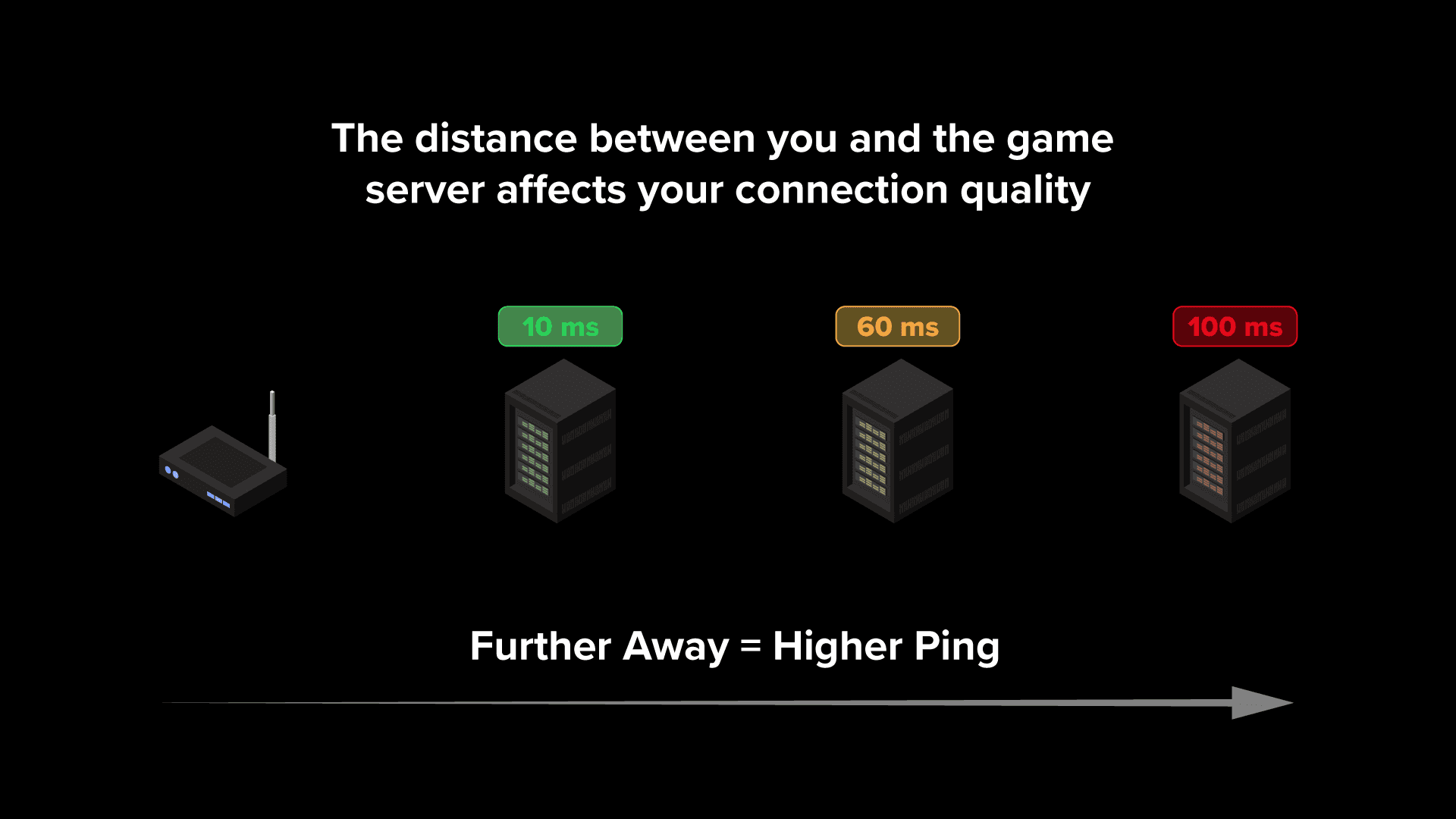
If you have connection quality metrics like ping and packet loss enabled in your game, you may have noticed that these values vary from match to match. This happens because connecting to different game servers can result in different connection quality depending on the server’s distance from your location.
In general, servers that are geographically closer to you will provide the lowest ping. This is because your game data has a shorter physical distance to travel between your device and the server, reducing delay and improving latency.
The opposite is also true. Connecting to servers that are further away increases delay, resulting in higher ping and worse connection quality. This becomes especially problematic in fast-paced competitive online games, where higher ping can put you at a significant disadvantage.
Server performance and server load can also impact your gameplay experience. During peak hours or after a major game launch or update, servers may experience increased stress, reducing performance and affecting your connection quality. Services such as online game server status trackers and Downdetector can be useful for checking whether your favourite game servers are currently experiencing issues or outages.
You might assume that online games would always prioritise your connection quality when assigning you a server. However, with modern matchmaking systems, that’s not always the case.
When searching for a match, games now factor in a huge range of variables, including your skill level, matchmaking rating, and queue time. These factors often take priority over connection quality because faster matchmaking and balanced lobbies help keep players engaged for longer.
Back in the day, matchmaking was much simpler, and the phrase “ping is king” accurately described the online gaming experience. But with the rise of complex matchmaking systems and engagement-based algorithms, your connection quality can now vary massively between matches.
This creates frustration for many players because performance can suffer when connected to a higher ping server, and overall gameplay quality becomes inconsistent from game to game.
This is exactly why we originally developed our range of gaming routers and advanced connection optimisation features. In the next section, we’ll explain how the Netduma R3’s powerful features can solve these issues.
The best way to consistently play on low ping servers is by using the Netduma Geo-Filter feature. Geo-Filter allows you to force connections to specific servers while blocking high ping or underperforming servers.
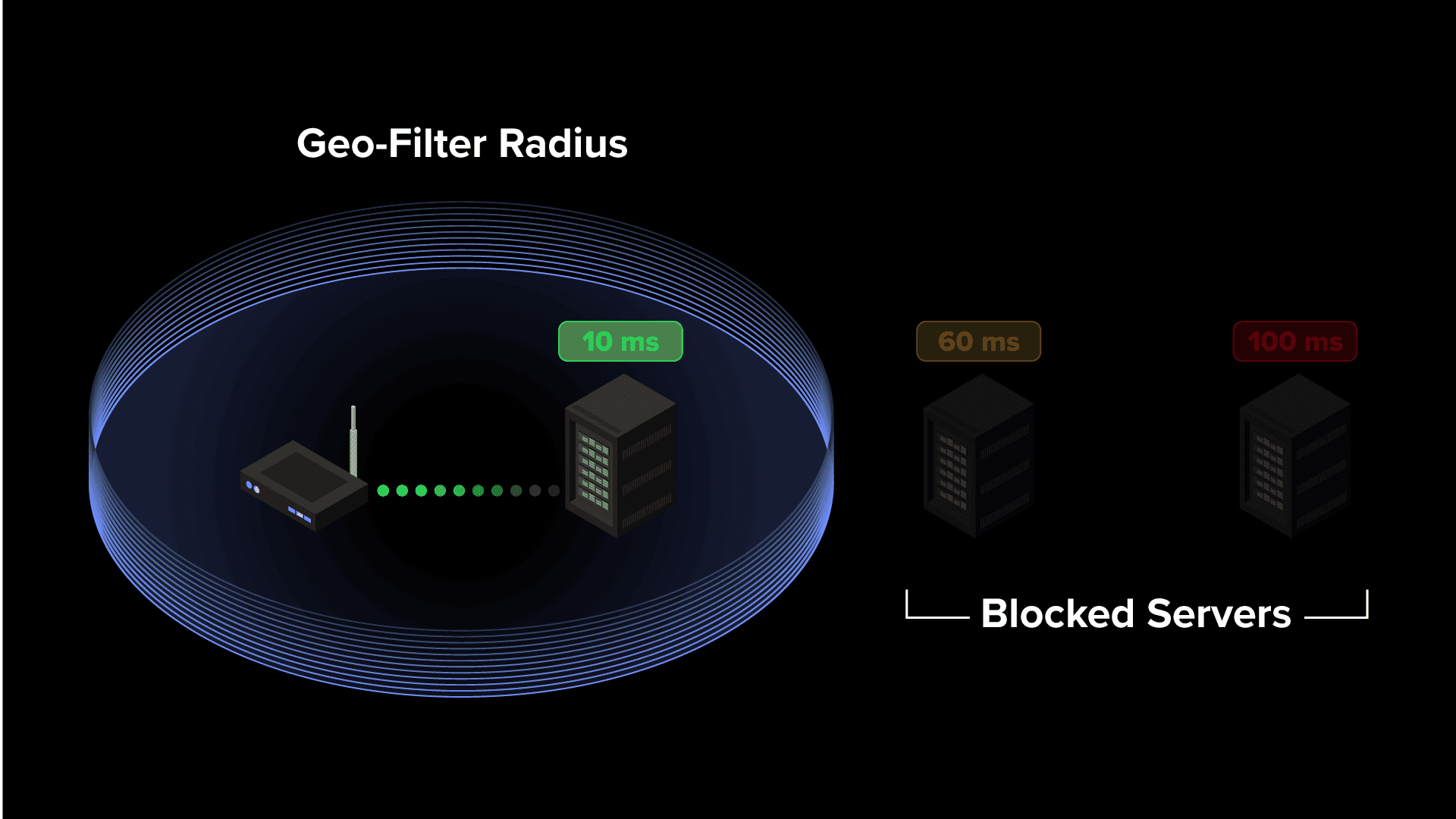
The Geo-Filter works by creating a fully customisable filter radius around your location. Using the server location information provided by Ping Heatmap, you can then configure your filter to include only the servers that provide the best connection quality and lowest ping.
Once configured, you’ll only connect to servers within your selected filter radius. You’ll also be able to see which server you’re connecting to and servers being blocked in real time within Geo-Filter interface. This creates a far more consistent online gaming experience, ensuring stable ping and reliable connection quality every match.
If you want to learn more about the setup process or functionality of Geo-Filter, we have full video guide and blog guide resources covering everything the feature can do.
Experiencing high ping or lag in Counter Strike 2 (CS2) can seriously ruin your performance—especially in a fast-paced, competitive game where milliseconds matter. Ping spikes, packet loss, or server lag can make aiming feel sluggish and completely throw off your reaction times.
In this guide, we’ll cover the top causes of lag in CS2 and show you how to fix them with proven network optimizations—whether the issue is server-side, on your Wi-Fi, or caused by congestion in your home network.
Before tweaking your settings or blaming your router, it’s smart to check if CS2 servers are down or under strain. With millions of players, server issues often pop up—especially after major updates or during peak times.
You can check live server status using:
Counter Strike 2 Server Status
If you can see other players are also experiencing CS2 lag, it’s likely a server-side problem—not your connection. While you can’t fix this directly, at least you’ll know the issue isn’t on your end.
One of the most common causes of lag and packet loss in CS2 is using Wi-Fi instead of a wired connection. Wireless signals are prone to interference, especially through walls or long distances. This often leads to packet burst, jitter, and unstable ping during matches.
The solution to this is to use a wired Ethernet cable to connect your PC directly to your router. This provides the most stable and reliable connection for online gaming. If you can’t run a cable to your router, consider using Powerline Adapters. These devices let you run an Ethernet connection through your home’s electrical wiring—perfect for multi-floor setups.
If your internet seems stable but you’re still experiencing high ping in Counter Strike 2, the problem might be hidden: connecting to distant servers or network congestion at home. That’s where the Netduma R3 gaming router and its powerful features comes in.
Powered by DumaOS 4, the R3 has three powerful gaming features that fix CS2 lag, ping spikes, and packet loss completely. If you want to see these features in action, check out our full Netduma R3 CS2 video below:
One major cause of CS2 high ping is being connected to a server that’s far away. Your data has to physically travel further, which naturally increases delay.
The Geo-Filter solves this issue by giving you the control of what servers you play on. Once setup, the Geo-Filter creates a customisable filter radius around your location. This filter blocks connection to far away, high ping servers and instead forces connection to nearby, low ping servers within your filter.
Pair this with Ping Heatmap, which shows the actual location and ping of CS2 servers globally. You’ll know exactly which servers give you the lowest ping—and can adjust your Geo-Filter settings accordingly.
Even with low ping, you might notice your gameplay feels inconsistent. That’s usually due to jitter—the constant fluctuation of your ping.
Steady Ping eliminates jitter by applying a small buffer that smooths out your ping. This results in almost perfectly stable response times and no micro-stutters in your connection. This makes your gameplay incredibly responsive, letting you hit more shots.
Even a few milliseconds of jitter can ruin your precision in CS2—especially in clutch moments. Steady Ping keeps your connection rock-solid.
If others in your home are streaming, downloading, or video calling, they could be eating up your bandwidth—causing lag in CS2, even on a good connection.
SmartBOOST fixes this by automatically detecting your CS2 traffic and prioritising it above other applications on your network. As gaming doesn’t amount of bandwidth, larger applications like streaming often take bandwidth away from gaming. SmartBOOST ensures gaming always receives the optimal amount of bandwidth, no matter how busy your network is.
By SmartBOOST ensuring each application on your network, it also eliminates bufferbloat on your network which will increase the responsiveness and stability of your gameplay even more
If you want to see SmartBOOST in action, watch our live demo showing how it eliminates lag on a congested network:
Marathon is Bungie’s new survival extraction FPS game that blends bold design with fast paced loot focused gameplay. Whether you’re fighting against the UESC forces, or other players – you’ll need a fast and stable connection to succeed.
In this blog we’ll show you how to fix all connection issues in Marathon. Whether you’re suffering from high ping, packet loss or an unstable connection, we have a fix for you in this blog.
The first thing to check when experiencing high ping or connection issues in Marathon is the games server status. If the servers are experiencing problems or become overloaded at peak times, your connection quality may suffer or your may experience issue logging into the game.
The only official way to check Marathon’s server status is through the official Bungie server status X (Twitter) Account, which you can find here.
Unfortunately, there is no direct solution for server issues as it’s up to the game developers to fix them. But knowing they are the cause of your connection issues will save you time troubleshooting your own network.
Using a wired connection instead of Wi-Fi will drastically improve your connection quality in Marathon. Whilst Wi-Fi is convenient for getting your devices online, it has some shortcomings for online gaming.
The main issues come from signal strength and interference, which can lead to packet loss, rubber banding and disconnections. In a high stakes game like Marathon where packet loss or disconnections can cause you to lose value loot and time, you need to make sure your connection is as stable as possible.
Switching to a wired ethernet connection is one of the quickest ways to get a better connection in Marathon. Ethernet offers a faster, more stable and lower latency connection – which is ideal for fast paced looting and gunfights. It also does not suffer from signal strength or interference, like Wi-Fi.
The only drawback to ethernet is whether its practical for you to run a cable between your router and gaming device. If this is an issue for your setup, you may want to look into Powerline Adapters. These let you carry an ethernet connection between devices using your home existing electrical wiring.
The Netduma R3 gaming router is the ultimate tool to combat connection issues in Marathon. Whether you’re suffering from high ping, an unstable connection or packet loss – the R3 has a fix.
In the following sections we’ll break down the gaming features of the R3 that will eliminate each connection issue so you can get back to scavenging around Tau Ceti IV.
The Geo-Filter feature allows you to control what game servers you connect to, instead of leaving it all up to a matchmaking algorithm.
The game server you connect to is the biggest determining factor of your ping in Marathon. The further away the server is, the higher your ping, this mean you’ll always want to connect to your nearest servers.
The Geo-Filter allows you to do this by creating a customisable filter around your location which forces connection to servers inside the radius, whilst blocking connection to servers outside of it.
This feature also gives you insight into your connection quality, which you can’t normally see due to Marathon having no connection metric settings. The side bar of the Geo-Filter will show you the server you’re connected to, your in-game ping and how stable your connection is.
If you want to learn more about the Geo-Filter and its more advanced settings, check out our Ultimate Geo-Filter guide below.
There is nothing worse in an intense gunfight than your ping spiking, especially when your loot is on the line. Steady Ping fixes this issue by stabilising your connection and eliminating jitter. This helps the game better sync to the game server you’re connected to, which results in extremely responsive inputs and gameplay.
Once Steady Ping is enabled, it will automatically start to stabilise your connection as you load into a game. If you want more control, or just want to tinker with settings, there is an Expert Mode available which let’s you set your ideal ping to stabilise to.
Packet loss is a major problem in fast paced games like Marathon, as dropped packets can completely ruin your chances of an exfil. This is an extremely problem common on busy networks, with other devices and applications fighting over your networks bandwidth.
The R3’s SmartBOOST feature allows you to prioritise gaming and eliminates bufferbloat, so all applications on your network will run smoother. By ensuring big downloads or streaming movies doesn’t interrupt your gaming, you’ll always be playing on a fast and stable connection.
If you want to see SmartBOOST optimise a busy home network, check our our live demo video below.
Marathon is the newest game from Halo and Destiny creators: Bungie. It offers a PvPvE extraction shooter experience based in a unique cybernetic world filled of varying environments and enemies.
Just like in any shooter game, you live and die by your mechanical ability. This is even more so in an extraction shooter like Marathon as a lost gunfight can cost you your hard earned resources and gear.
To give yourself the best chance to succeed in Marathon, you need to be playing on a low ping and stable connection to gain the tactical advantage. We’ve tested the game during the server slam event to find the locations of the best Marathon servers for a low ping connection.
The game server you play on is the largest determining factor on your connection quality in Marathon. This is because the your game data has to travel from your PC or console to and from the game server. The greater the distance it has to travel, the higher your in-game ping will be.
You would assume the game wouldn’t connect you to far away high ping server, but matchmaking algorithms have to consider a wide range of factors when assigning you a server. Factors like your skill level or how long you’ve been waiting for a match may take priority, and as a result your connection may suffer due to being allocated a far away server.
Without a server selector setting in Marathon, you’re completely at the mercy of the matchmaking algorithm to allocate you a server with low ping.
If you find yourself connecting to high ping servers in Marathon, then you need the Netduma R3 gaming router and its powerful Geo-Filter feature.
The Geo-Filter allows you to control what servers you play on in popular online games. It creates a customisable filter radius that determines what server you can connect to. This allows your to force connection to nearby, low ping servers whilst blocking the higher ping ones.
Once the Geo-Filter is set up, you will only connect to low ping servers in Marathon which is the perfect conditions for the intense PvP gunfights. If you want to see the setup process of the Geo-Filter, or learn more about the advanced settings, check out our ultimate Geo-Filter guide video below.
Apex Legends remains one of the most popular battle royale games in the world. With fast-paced movement mechanics and an ever-expanding roster of Legends, Season 28 brings even more excitement—and competition.
But all of that means nothing if you’re battling connection issues like high ping, packet loss, or lag spikes. For the best gameplay experience, a low ping and stable connection is essential.
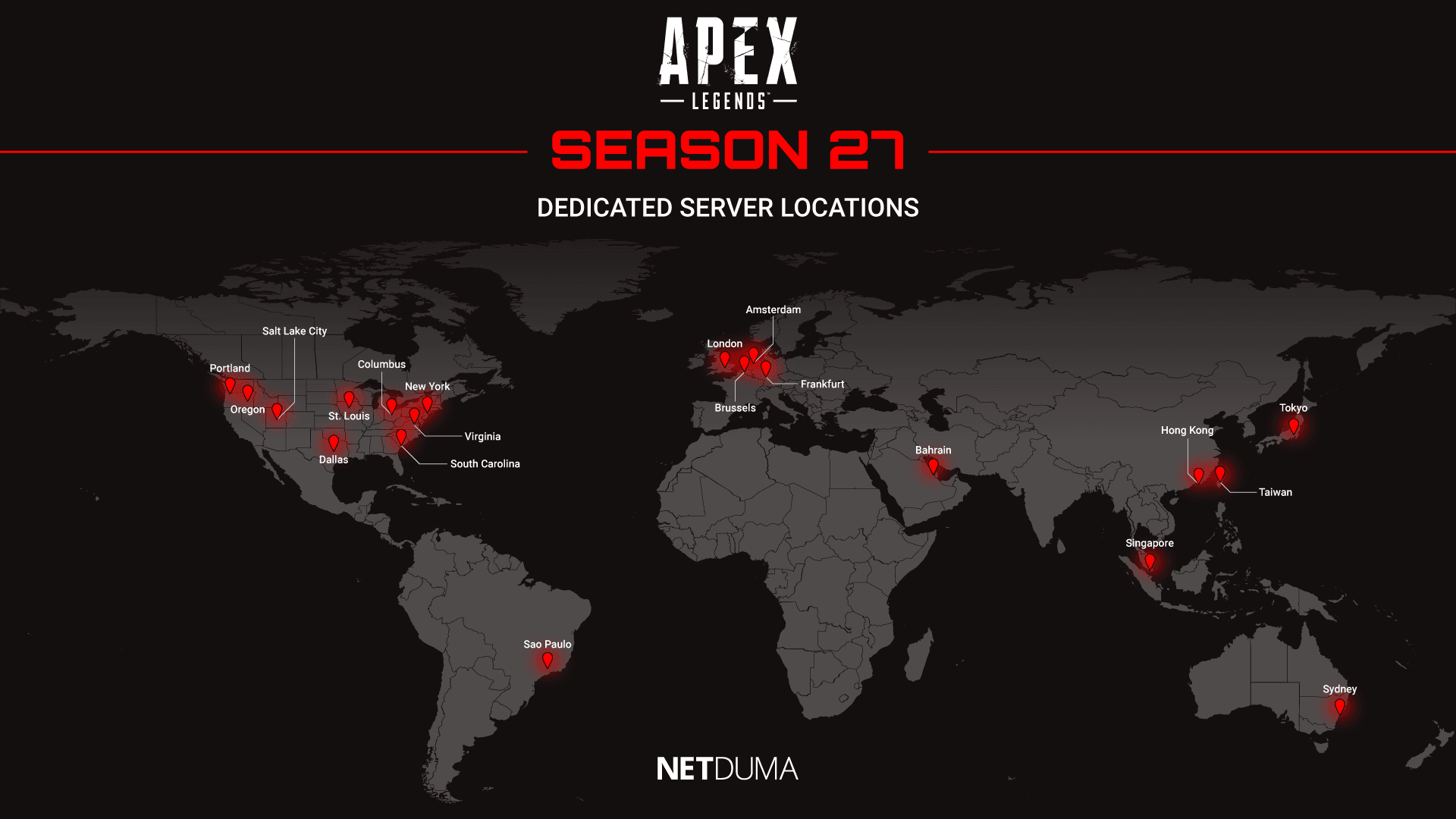
The Apex Legends server you connect to has a direct impact on your in-game ping.
The farther away the server, the longer it takes for data to travel between your device and the game, resulting in higher ping and potential lag.
Thankfully, Apex Legends has a built-in server selector that helps you find the lowest ping servers.
You can access this feature from the game’s home screen. It shows both ping and packet loss for each server, allowing you to make an informed choice. If your preferred low-ping server is experiencing issues, you may see unusually high ping. In that case, try switching to another nearby server until the issue is resolved.
If you’re suddenly experiencing high ping or packet loss, but your network is normally stable, the issue might be with the Apex Legends servers themselves.
We’ve linked some useful resources for checking Apex Legends server status below. One is the official Apex Legends server status tool and the other is Downdetector which shows user reported server issues.
If Apex Legends servers are working fine but you’re still lagging, the issue might be on your end. Check out our full Apex Legends lag fix blog to learn how to fix all connection issues you may be experiencing.
In this blog we’ll cover:
Black Ops 7 is the latest addition to the Call of Duty franchise, bringing even faster and more dynamic gunfights thanks to the new wall-jumping movement system. As the gameplay speeds up, your connection needs to keep up with it.
Playing with high ping, packet loss or an unstable connection will immediately put you at a massive disadvantage.
In this guide, we’ll show you how the Netduma R3 gaming router can optimise your connection to eliminate high ping, packet loss and instability in Black Ops 7. We’ve also included essential network tips to help you improve your connection even further.
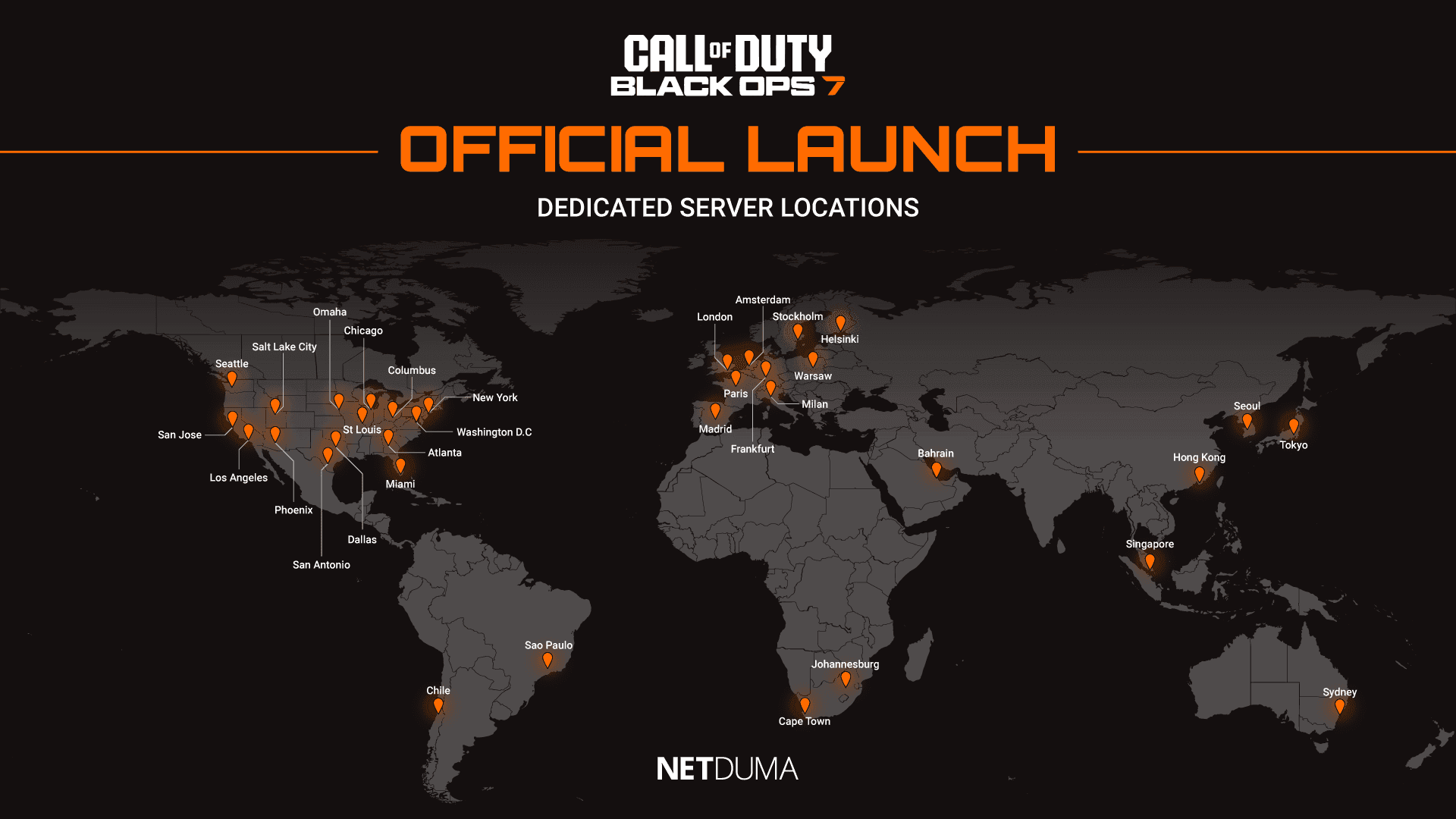
Check Black Ops 7 Server Status
If you’re suddenly experiencing lag, stuttering, or difficulty connecting, the first thing to check is the Black Ops 7 server status. During busy periods such as a new season or peak evening hours, servers can become overloaded or temporarily unstable, causing higher base ping, packet burst, or login issues.
Here are some useful links to check the current status of Black Ops 7’s servers:
If servers are experiencing problems, there is unfortunately no direct fix—you simply need to wait for the developers to resolve the issue. However, confirming that the servers are the cause can save you time troubleshooting your own equipment unnecessarily.
Use a Wired Connection for Black Ops 7
One of the simplest and fastest ways to improve your connection in Black Ops 7 is to switch from Wi-Fi to a wired Ethernet connection.
While Wi-Fi is convenient, especially if your console or PC is in another room, it introduces a lot of variables that can weaken your connection. Interference, signal drop-off over distance and inconsistent signal strength are all common issues that can cause packet loss and latency spikes during intense matches.
A wired Ethernet connection provides a far more stable and consistent link to your router, which is crucial for a fast-paced shooter like Black Ops 7.
If running a cable isn’t practical, you may want to consider using powerline adapters. These allow you to achieve a stable wired-like connection across rooms without needing to run long cables through your home.
To understand what type of connection issues are affecting your gameplay, you should enable Telemetry in the Settings menu. Setting this to Essentials provides the most important information without cluttering your screen.
Once enabled, you’ll see real-time ping and packet loss indicators, giving you immediate feedback on whether you’re experiencing high ping, jitter or packet burst.
Another setting worth adjusting is On-Demand Texture Streaming. Since the ability to disable this feature was removed, some players have reported it causing packet burst during gameplay. Setting it to Minimum may help reduce this issue, and adjusting the Allocated Texture Cache Size to Medium or Large through the Show More menu can further stabilise your connection quality.
If you want the best possible connection in Black Ops 7, the Netduma R3 gaming router is built specifically for gamers who want superior stability and responsiveness in their gameplay.
Its features are designed to eliminate high ping, packet loss, jitter and network congestion so that every match feels fast and consistent, even when your home network is under heavy load.
Below, we break down exactly how the R3 can fix the most common connection issues affecting Black Ops 7 players.
High ping puts you at an immediate disadvantage, especially with Black Ops 7’s faster movement system and rapid gunfights. High ping is almost always caused by being placed on a distant or overloaded game server.
Even though Black Ops 7 has moved away from strict SBMM, the game may still connect you to a suboptimal server, resulting in sluggish, delayed gameplay.
Geo-Filter is the only tool that gives you full control over the servers you connect to. With the R3’s Geo-Filter enabled, you can force your game to only use the lowest-ping servers while blocking high-ping or unstable ones. This guarantees a consistently responsive experience match after match.
Simply add your device, select Black Ops 7 as your game, and adjust your filter radius to cover the best server locations. You can also use the R3’s Ping Heatmap feature to identify where the highest-performing servers are located.
If you want to learn more about the set up process and what the Geo-Filter can do, check out our blog on it here. Or if you want to see the feature in action, check out our ultimate Geo-Filter guide video below.
Steady Ping is another powerful feature that will increase how responsive your inputs and gameplay feel. It does this by eliminating jitter – the micro changes in ping, from your connection. This allows you game to better sync to the game server, which should make your gameplay feel extremely smooth.
Once Steady Ping is enabled, you can see your ping automatically becoming stabilised in the ping graph section. If you want to experiement with settings to find the sweet spot for your network, you can switch Steady Ping to Expert Mode.
The last connection issue to fix in Black Ops 7 is packet loss and packet burst, which is often caused by network congestion. If you’re gaming on a busy network filled with bandwidth intensive activities like video streaming and file downloads – it can cause your game to lag and stutter.
SmartBOOST is the ultimate network optimisation tool that eliminates congestion and bufferbloat so your gaming remains smooth and stable, no matter how busy your network is.
It ensures whatever applications you mark as high priority always get the amount of bandwidth they need for optimal performance. This means if gaming is the top priority on your network, intensive activities won’t be able to cause you any issues.
If you want to see SmartBOOST optimise a busy home network for gaming, check out our live demo video below.
Marvel Rivals has taken the team-based shooter genre by storm, and with the arrival of Season 5, its popularity shows no signs of slowing down. The game brings iconic heroes, unique abilities, and engaging gameplay to the table. However, one issue that can ruin the experience for players is high ping and lag.
Low Ping Server for Smooth Gameplay
Fortunately, NetEase has introduced a server selector feature to help players find the best connection. Whether you’re in quick matches or competitive mode, you can choose the lowest ping server to ensure a smoother gaming experience.
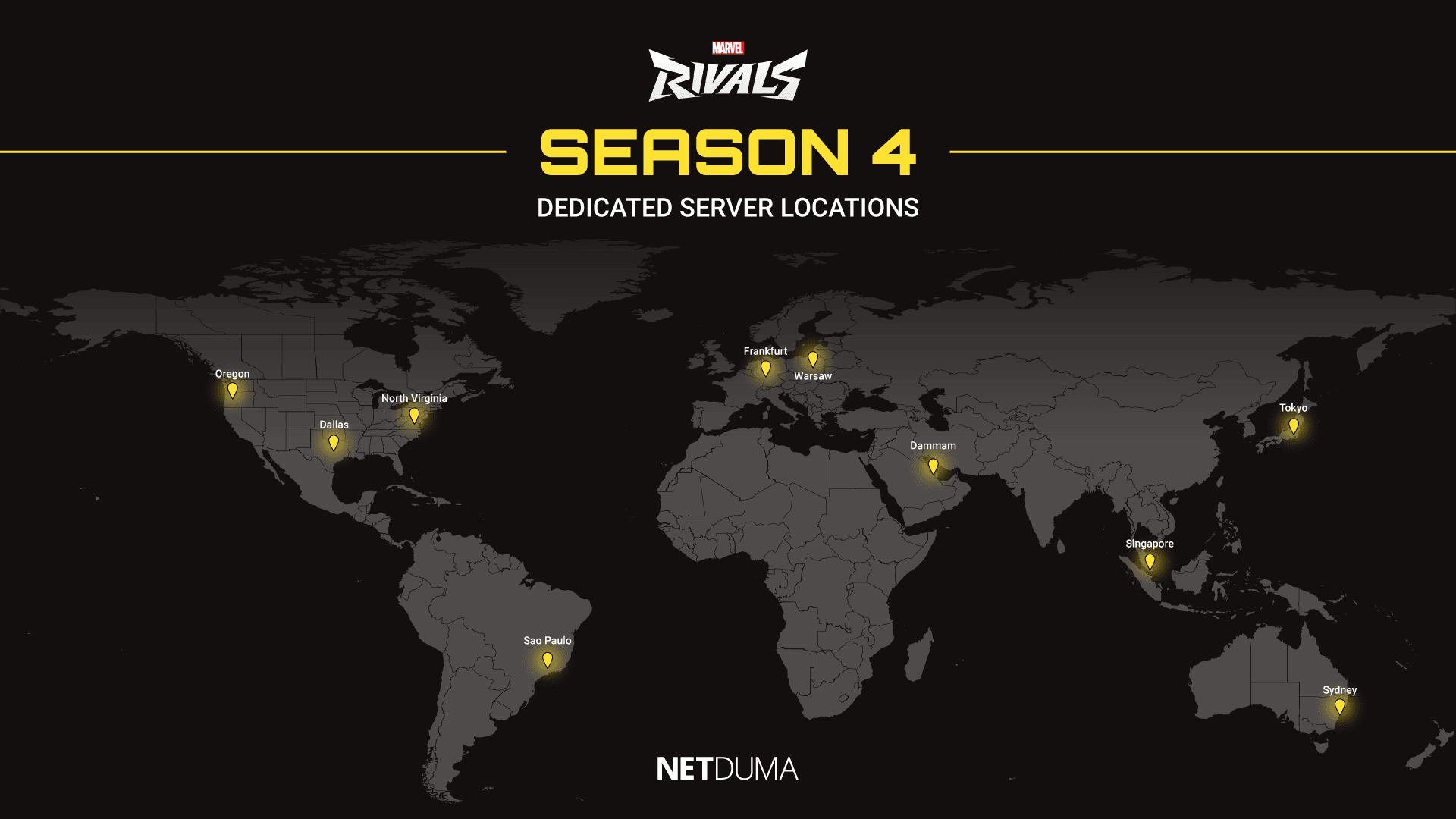
To help you out, we’ve included a list of Marvel Rivals’ dedicated server locations in this blog post. You can also view these servers in-game, complete with their ping values, from the lobby screen before searching for a match.
The ping values in the screenshot below are based on our location in the UK. The servers with the best connection will differ depending on where you live.
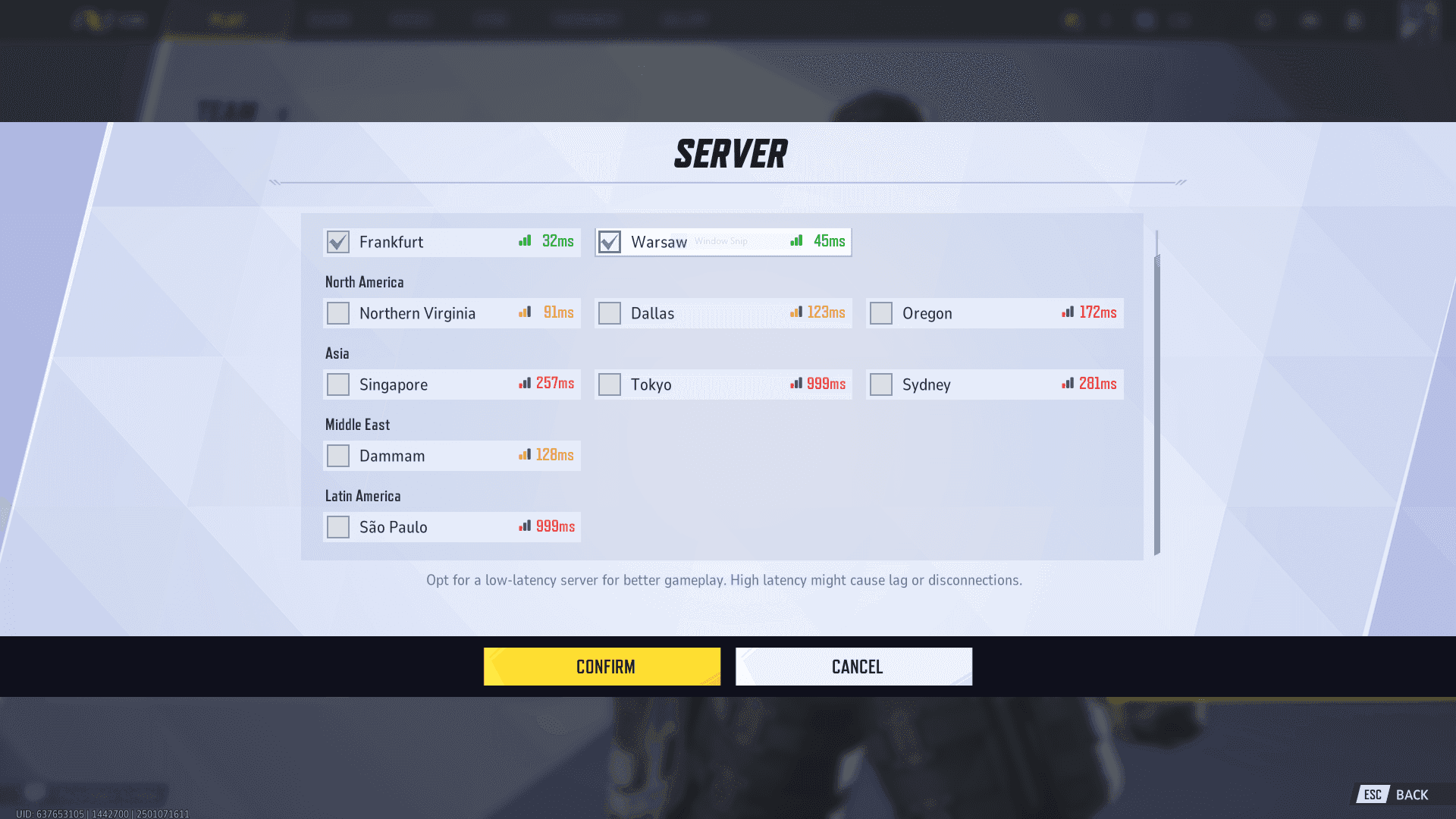
Current Marvel Rivals Server Locations
Compared to other major shooters like Call of Duty or Fortnite, Marvel Rivals doesn’t yet boast an extensive network of servers. While the game’s immense success could lead to more server locations in the future, some players may currently face high ping due to limited options.
Your in-game ping depends on how far your game data needs to travel to reach the server. The farther the distance, the higher your ping will be. This is why the game recommends selecting a server close to your physical location for optimal performance.
Improve your Connection With the Netduma R3
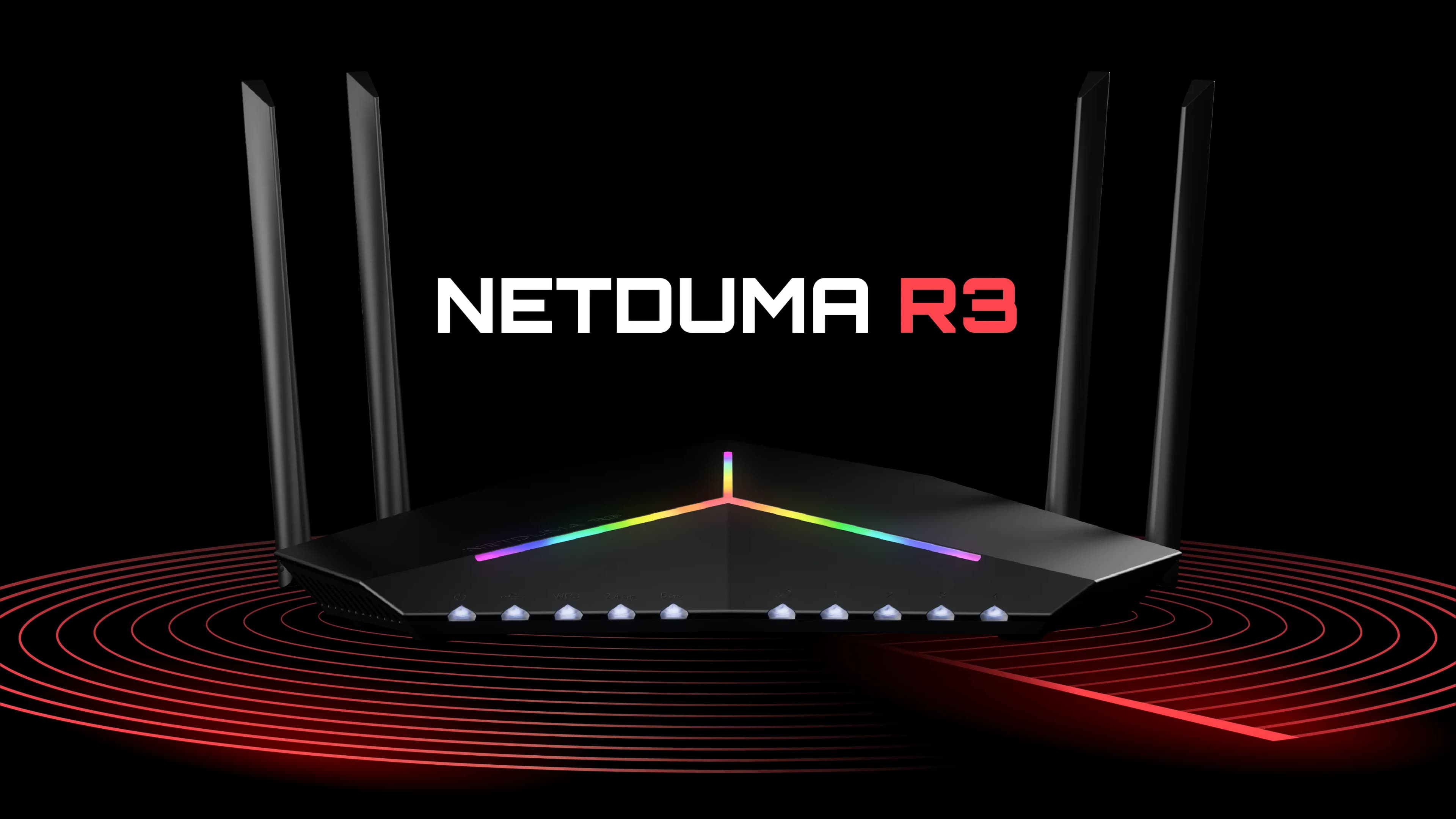
If you’re familiar with Netduma and our gaming routers, like the Netduma R3, you know we specialize in optimizing connections for online games. One standout feature is our Geo-Filter, which allows you to control the servers you connect to, bypassing matchmaking algorithms.
While Marvel Rivals already includes a server selector, you might wonder if the Netduma R3 can still improve your connection. The answer is a resounding yes. The R3 offers additional powerful features to minimize lag, reduce jitter, and stabilize your connection. For a detailed walkthrough, check out our Marvel Rivals lag fix guide here.
Maximize Your Marvel Rivals Experience
Playing on low-ping servers is critical for the best Marvel Rivals gameplay. By using the in-game server selector and tools like the Netduma R3, you can ensure a seamless, lag-free experience.
Explore our feature list and discover how the Netduma R3 can revolutionize your online gaming. Don’t let high ping hold you back from dominating in Marvel Rivals Season 5.
The last thing you want to see when pushing a team in Apex Legends is a connection issue icon flashing on your screen. Whether it’s high ping, packet loss, or congestion, connection issues will ruin your aim, movement, and gameplay in general.
In this blog, we’ll be giving you solutions to fix all connection issues in Apex Legends. If you follow every solution included in this blog, you’ll have a stable and low ping connection in every game of Apex Legends.
Apex Legends Server Status
The first thing to check when lagging in Apex Legends is the game’s server status. If you are lagging on a usually stable connection, it could be due to server issues or servers being under heavy load. This is common when a new update is released and a large influx of players come back to the game.
We will link some useful sites below that show the status of all Apex Legends data centres.
If your local server or data centre is experiencing issues, it’s just a waiting game for the game developers to issue a fix or update. The useful thing about knowing about server issues is you can be pretty sure your network issues are being caused by that, rather than an issue with your network.
In-game Settings
There’s some useful settings in Apex Legends that will give you more insights into the types of lag you are experiencing. These settings will also be useful with our last lag-fixing tip.
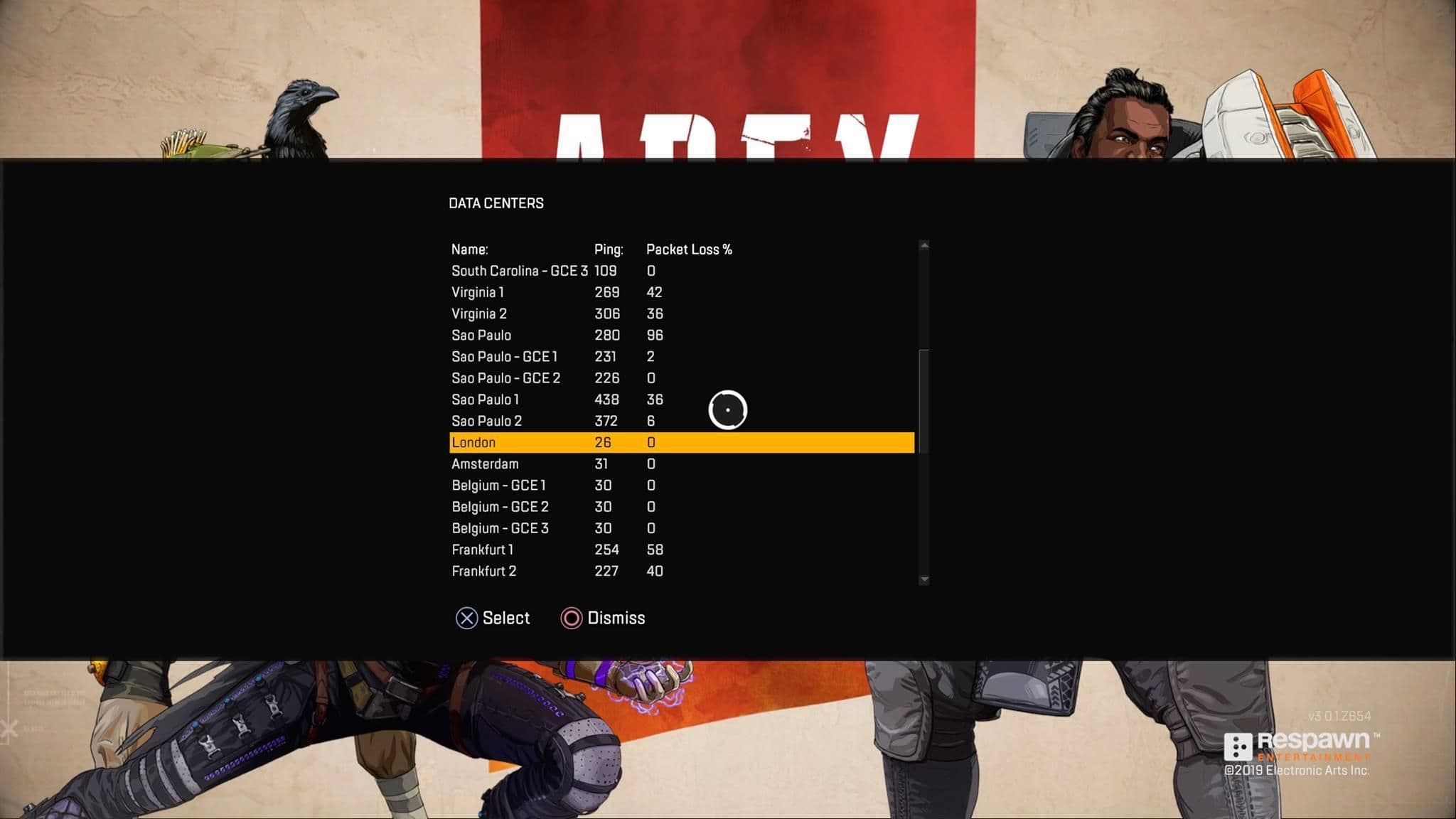
The first piece of useful information is available right when you start up the game. In the bottom left corner of the screen, there’s an option to view the data centres that you can connect to when searching for a game in Apex Legends. Depending on the platform you are playing on, the button to access this menu will differ.
You can select your preferred data centre on this menu to favour connecting to low ping servers. We can use this information later on in the blog, but you can see from this list the ping values and packet loss of the data centres. This is another way to see whether your local server/s are experiencing any issues before you start playing.
The other setting that’s worth mentioning is in the game settings menu. It’s called “Performance Display.” You’ll want to enable this to get in-game telemetry settings.
This shows your ping and packet loss values so you can see when you are experiencing network issues when playing. It can also be used to show your low ping and stable connection once you’ve followed our steps from this blog.
Use a Wired Connection
One of the most overlooked tips for improving your connection when gaming is using a wired (ethernet) connection. It provides a much stronger and stable connection than Wi-Fi, which is crucial for gaming.
Wi-Fi is extremely convenient, and is the reason most people end up using it, even when gaming. Especially if your PC or console is located far away from your router, using Wi-Fi is the quickest and easiest option. But if you take Apex Legends, or gaming online seriously, you need to be playing on a wired connection.
Stability is the number one factor for having a great connection in online gaming. It’s a common misconception that you need faster internet to get low ping or a stable connection, but it’s just not true. Gaming only requires a tiny amount of bandwidth for a great connection, but things like congestion and packet loss cause you to lag in-game.
Wi-Fi struggles when the signals need to travel a long distance or through walls/floors to reach your PC or console. This can lead to dropped packets, which then causes packet loss and stuttering in-game. An ethernet cable doesn’t have this issue, and it’s why it provides a better quality connection for online gaming.
If the distance between your router and PC/console is stopping you from using an ethernet cable, we have a best of both worlds solution. It’s a piece of tech called Powerline Adapters. They use your home’s existing electrical wiring to carry an ethernet connection to different rooms/floors of your home.
So this way you can still achieve a stable connection, even if your router is in another room from your gaming setup.
Netduma R3 Lag Fix Guide
If you’ve tried the tips we have already mentioned and you’re still experiencing network issues, our next solution is a must-have if you want the best connection in Apex Legends.
The Netduma R3 gaming router is a network optimisation Swiss army knife. Powered by a set of networking tools that will ensure you only play on low ping servers, stabilise your ping by removing jitter, and eliminate congestion on your network.
So, let’s take a look at the features that will optimise your connection.
Geo-Filter: Always Get Low Ping in Apex Legends
Geo-Filter can be used in conjunction with the data centre selector in Apex Legends to ensure you only play on low ping servers. If you are already using the data centre selection setting, Geo-Filter still serves a purpose by enabling another R3 feature, Steady Ping. We explain what this powerful feature does in the next section.
Adding your gaming device to Geo-Filter makes it so you can only connect to the servers within your filter radius. Another R3 feature, Ping Heatmap, shows you where the Apex Legends servers are located. It also shows you the ping you would have when connecting to them.
Now you know the best servers to connect to, you can adjust your Geo-Filter radius to only include these servers.
Steady Ping: Stabilise Your Connection in Apex Legends
Steady Ping is our newest gaming feature, exclusive to the Netduma R3. It completely stabilises your ping by removing jitter from your connection. This makes your inputs feel incredibly responsive, as the game server can process them better without jitter.
Jitter is the constant change in your ping that you are probably used to seeing in the telemetry settings of Apex Legends. By removing jitter, it means you will be playing on a stable ping, which is ideal for a fast-paced game like Apex.
In order to use Steady Ping, you must add your device to Geo-Filter. Steady Ping locks in a stable ping by adding a small buffer to your connection. This will slightly raise your ping, but it does this to account for any fluctuation you would normally experience.
You can learn more about how Steady Ping works, and how beneficial it is in the video below.
SmartBOOST: Fix Packet Loss in Apex Legends
So, now you are only playing on low ping servers with a stable connection; the only thing that will make you lag is congestion on your network.
You know what it’s like to game on a busy network. People are streaming 4K video, downloading files, and scrolling on social media. All of these activities use up your network’s bandwidth and make your gaming suffer.
SmartBOOST is the ultimate QoS (quality of service) solution. It automatically manages your bandwidth usage to prioritise gaming traffic and stops bandwidth-intensive applications from slowing you down.
We have a live demonstration of SmartBOOST optimising a busy network to prioritise gaming. Check out the video below to see SmartBOOST in action.
Thanks for Reading
If you’ve followed the steps in this blog, you should be enjoying a low ping and stable connection, perfect for beaming players in Apex Legends.
If you want to get your hands on the powerful features included in DumaOS 4, then check out our Netduma R3 Gaming Router. It’s our most powerful router yet and comes with DumaOS 4 pre-installed.
Battlefield 6 promises the ultimate all-out warfare experience, aiming to take the top spot in the FPS genre. But to get the best performance during the beta or full launch, you’ll need more than just skill—you’ll need a fast and stable connection.
Whether you’re boots-on-the-ground infantry or an ace in aerial dogfights, a bad connection can ruin your experience. That’s why knowing the best Battlefield 6 server locations is key to dominating the battlefield.
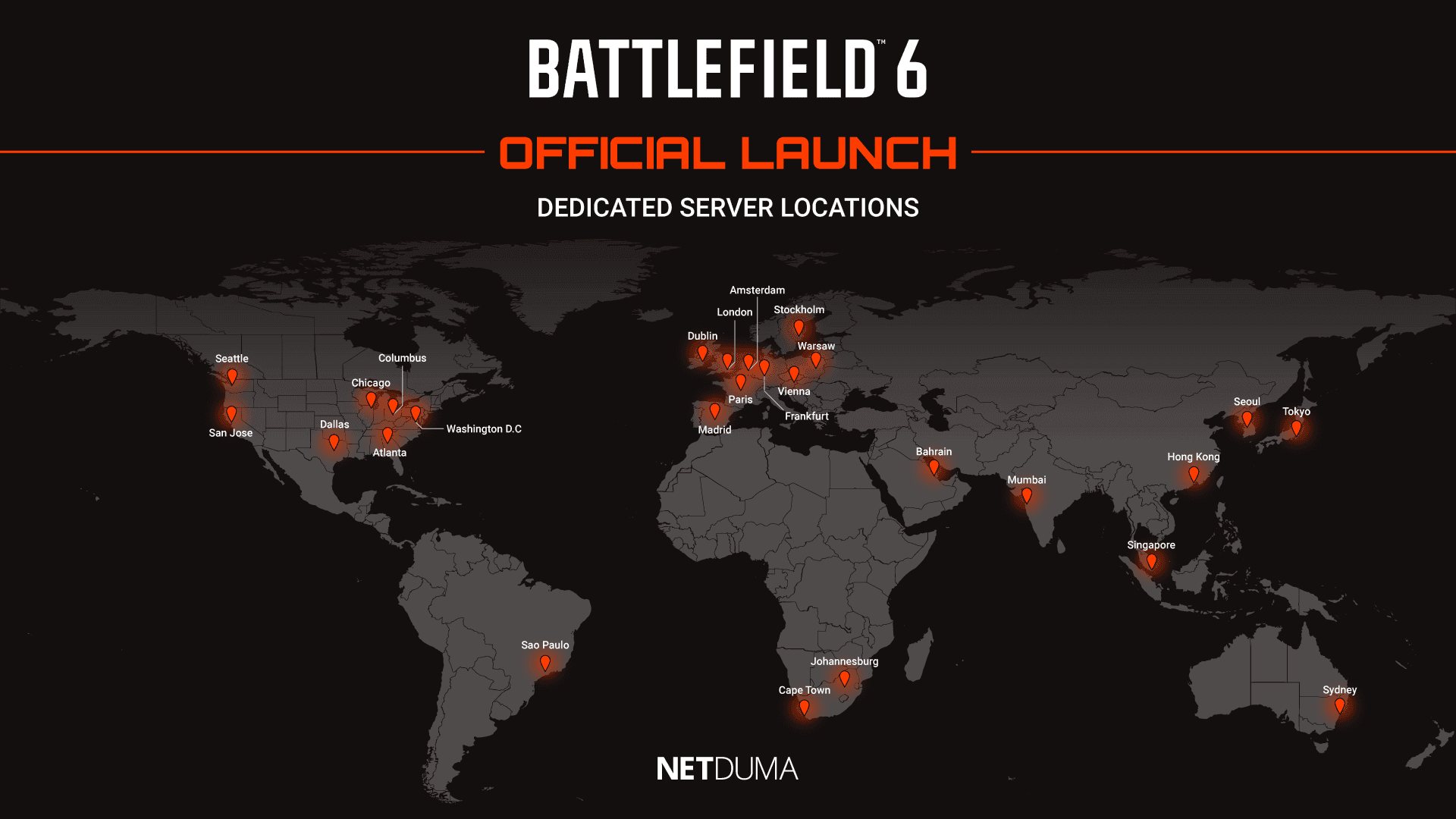
We’ve tested the Battlefield 6 beta to identify all available server locations so you can connect to the closest and fastest server. We’ll also update this guide at launch if any new servers are added or existing ones change.
What Are The Best Battlefield 6 Servers?
The best Battlefield 6 servers are the ones closest to your physical location. The shorter the distance between you and the server, the lower your ping will be. A low ping means faster response times, smoother gameplay, and fewer lag spikes.
Fortunately, Battlefield 6 has a solid global spread of servers, so most players should have access to at least one or two nearby options for a great connection.
How to Select the Best Battlefield 6 Server
Currently, Battlefield 6 doesn’t include a traditional server browser in core multiplayer modes (outside of Portal). That means you can’t manually choose a server—unless you’re using the Geo-Filter feature on the Netduma R3 gaming router.
This feature allows you to connect to specific servers to ensure you always get a low ping connection. You can use the server map from this blog, or the Ping Heatmap feature to find the closest Battlefield 6 servers to you. With this information you can adjust your Geo-Filter radius to block unwanted high ping servers and force connection to the best Battlefield 6 servers.
We have a full Geo-Filter ultimate guide that covers everything you can do with the feature. If you want to learn more about it or see it in action, check the guide out here.
Battlefield 6 Server Status
With so much hype around the beta and launch of Battlefield 6, we expect the servers to be filled with players which may overload them. This could lead to server issues like higher base ping, disconnections or problems logging into the games online service.
If you are experiencing any of these connection issues, it worth checking the Battlefield 6 server status with these links below:
If servers are experiencing issues, there’s not much you can do—it’s up to EA to scale server capacity or apply fixes. But checking first can save you from unnecessary troubleshooting on your end.
The Finals brings a fresh twist to the team-based FPS genre, offering dynamic virtual arenas and innovative gameplay mechanics. With so many ways to play, no two matches ever feel the same — whether you’re running and gunning, demolishing entire sections of the map, or sneaking through with a katana.
But no matter how you play, one thing never changes: connection issues suck. It doesn’t matter how skilful or mechanical you are as a player, lag, high ping or packet loss can completely ruin your gameplay experience and lead to you and your team unnecessarily losing games.
This is where we come, the Netduma team have created this blog to help fix your connection issues in The Finals. In this blog we’ll cover a range of tips and show you how to completely eliminate lag, high ping and packet loss in The Finals.
The Finals Server Status
Before we start changing your network setup or settings, the first thing to check if you suddenly start to lag is the server status. If The Finals game servers are experiencing issues or underperforming it may negatively affect your gameplay.
Unfortuntely, there’s no official way to check if The Finals servers are down or experiencing issue. The best places we’ve found to check are The Finals Reddit, X account or Discord server.
If the servers are experiencing issues, there’s no direct fix for it. It’ll be down to the game developers to fix or update them for connections to return to normal.
If the servers are running normally and you’re still lagging, then keep reading this blog to fix all connection issues in the Finals.
In-Game Settings
The Finals has a useful setting called Preferred Region which can be found under Gameplay and then General. This setting allows you to choose a region of servers across the world to play on.
This is an important setting as your in-game ping is calculated based on the game server your connect to. The greater the physical distance between you and the game server you connect to, the higher your ping will be.
This should be set to Automatic by default, which should allocate you to the best region for your location, but its worth checking if you are experiencing high ping in The Finals.
Its worth mentioning some regions will have multiple servers within them, so depending on where you live in a region you may still experience high ping when connecting to a far away server within the region. We have the ultimate solution to connecting to the best The Finals servers later on in this blog.
Use a Wired Connection
The quickest and easiest change you can make to drastically improve your connection in The Finals, or any online game, is switching to a wired ethernet connection.
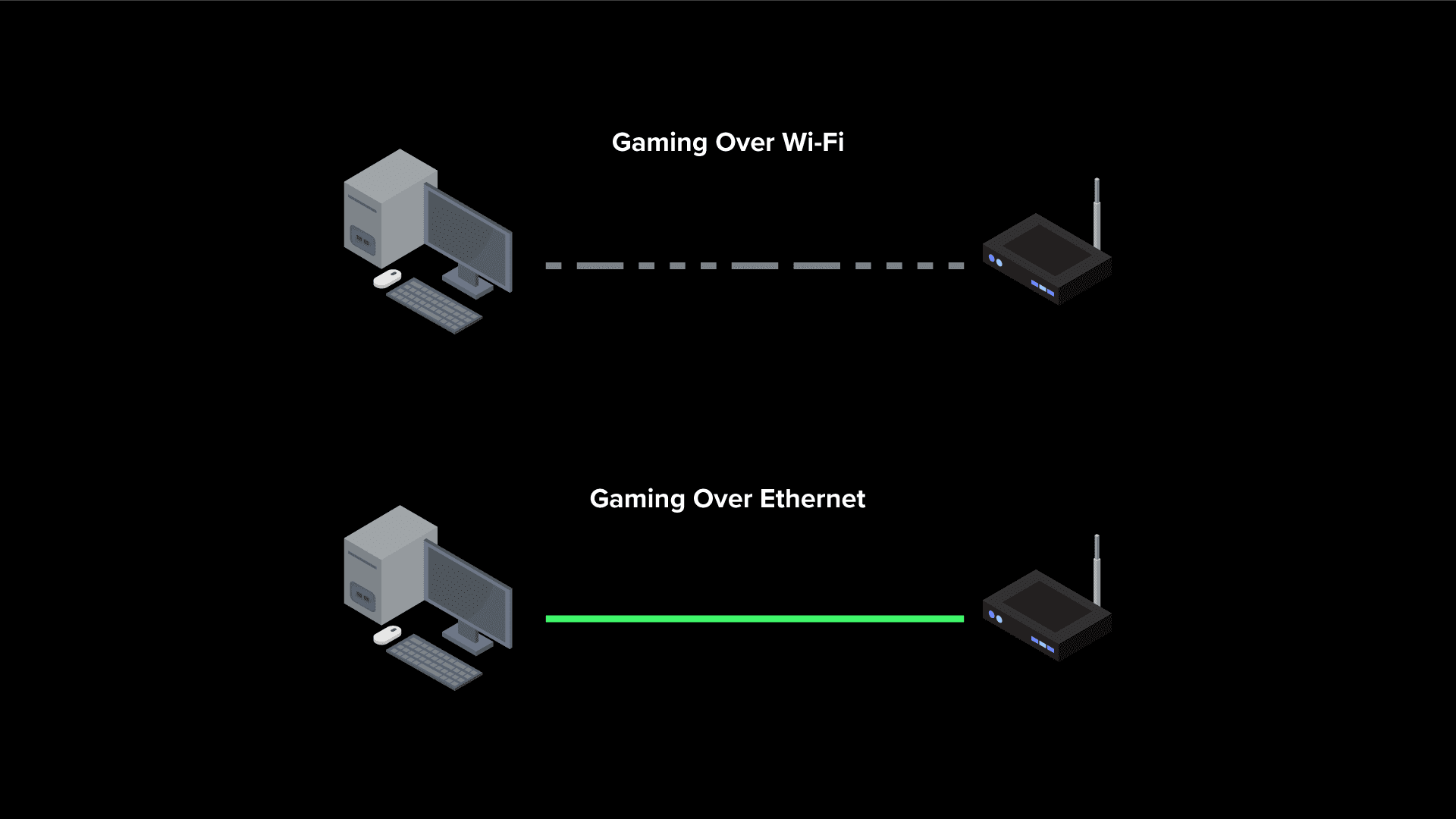
Wi-Fi is incredibly convenient to get devices connected to your router, but its not ideal for a gaming connection. This is because Wi-Fi can suffer from interference and reduced signal strength, especially if it has to travel through walls or doors to reach your gaming device.
These Wi-Fi issues will cause ping spikes and packet loss in online games which can completely ruin your gameplay. A ethernet cable on the other hand provides a faster and more importantly stable connection between your router and gaming device.
Running a long cable across your home might not be possible, so you could look into Powerline Adapters which use your home electrical wiring to carry a wired connection, providing a stable connection without a wire.
How to get the Best Connection in The Finals
If the servers aren’t experiencing issues and you’re playing over a wired connection but still experiencing lag in The Finals, it might be time for a more serious solution. Introducing the Netduma R3 gaming router, the ultimate tool to optimising your connection in The Finals. Its powerful features can resolve high ping, packet loss and an unstable connection.
Fix High Ping in The Finals
Its quite hard to know what your ping is in The Finals as there’s no way to display this statistic in game unfortunately. You’ll definitely feel it when playing on a high ping though, your movement and inputs will feel sluggish and you’ll be at a huge disadvantage.
The Geo-Filter feature on the Netduma R3 eliminates high ping in The Finals. It works by creating a customisable filter radius around your location that blocks connection to servers outside of it.
You can use another R3 feature – Ping Heatmap, to find the locations and connection quality of The Finals servers. Then with this information you can adjust your Geo-Filter to only include the best servers.
The side menu of the Geo-Filter will also show you your ping in real time when playing The Finals, so you won’t need to guess anymore.
If you want to learn more about the Geo-Filter, or see the feature in action check out the video below:
Fix Ping Spikes in The Finals
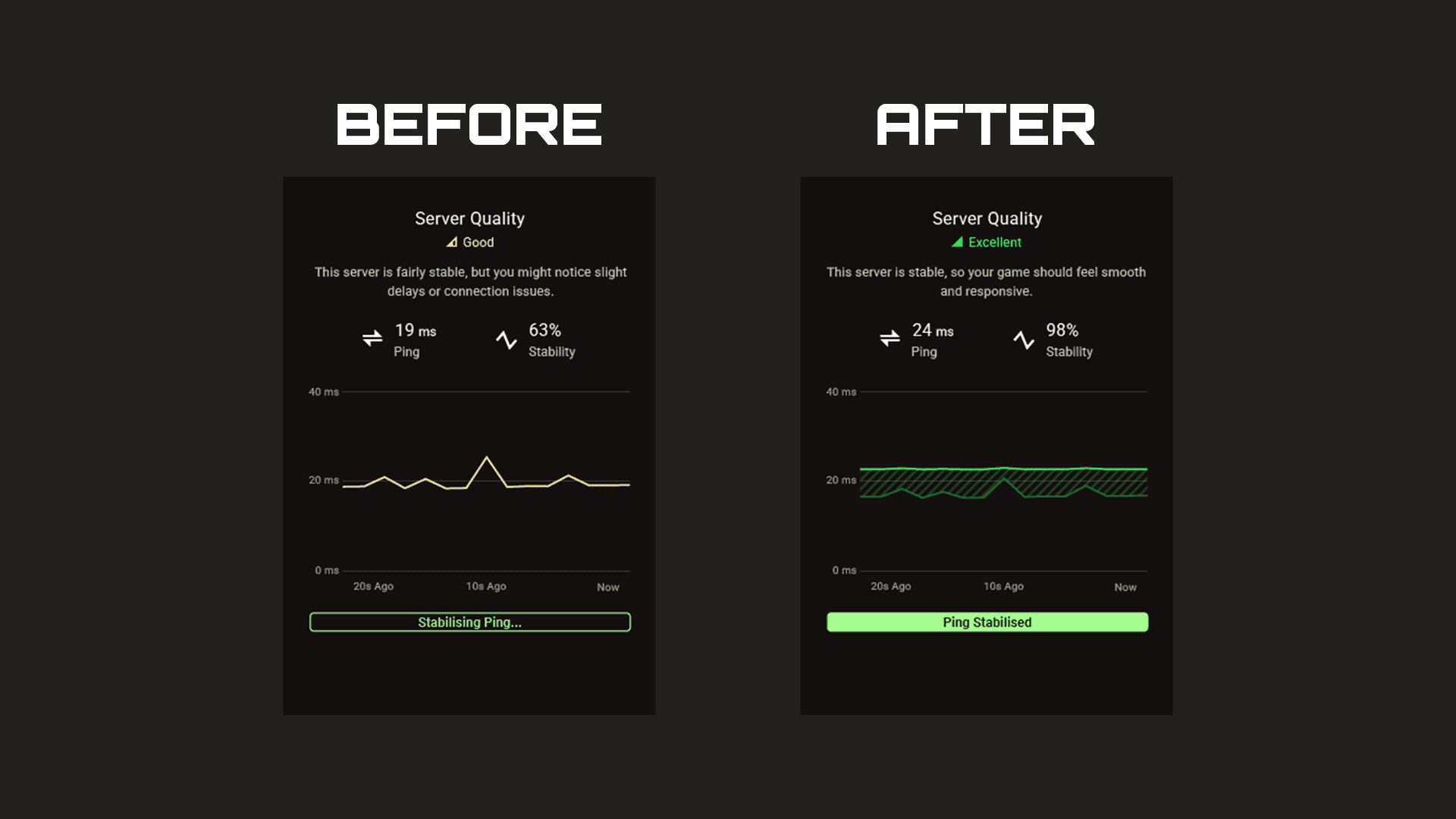
With all of the chaos in The Finals, an unstable connection can make it hard to keep up. Constant changes in your ping, otherwise know as jitter can make you out of sync with the game server and cause your gameplay to feel unresponsive.
The Steady Ping feature on the R3 removes jitter from your connection and stabilises your ping for more fluid gameplay. Steady Ping automatically stabilises your ping when using the Geo-Filter so you’ll be able to enjoy a low ping and stable connection.
The default Simple Mode does all of the work for you, but if you want to tinker with settings to find the sweet spot for your connection you can try Expert Mode.
Fix Packet Loss in The Finals
Last but not least, congestion on your network may be causing your connection issues. If you game on a busy network full of bandwidth heavy activity like streaming and downloading it can cause ping spikes and packet loss.
SmartBOOST on the Netduma R3 eliminates congestion across your whole network but managing your bandwidth between prioritised and non-prioritised traffic. This ensures important activities like gaming always get the optimal amount, but larger activities like streaming can’t take more than they need.
As every device and applications only receives the amount of bandwidth they need, this removes congestion and stops bufferbloat from occurring on your network. This means your gaming experience will always stay fast and stable, no matter how busy your network is.
If you want to see SmartBOOST in action, check out our live demonstration of a busy network being optimised below: